
Install a theme on ADFS 3.0 (Windows Server 2012 R2)
Add your logo, background and text to an ADFS 3.0 logon theme, install it with PowerShell, and restore the default theme.
This page shows how to brand and install a logon theme on Active Directory Federation Services (ADFS) 3.0, which runs on Windows Server 2012 R2.
Your theme download includes a PDF install guide with the same steps. Follow the PDF guide during installation and use this page as a quick reference.
Before you begin#
- Download your theme package (a ZIP file) for ADFS 3.0. Themes are version specific, so a theme for another ADFS version won't work.
- Sign in to the ADFS server with an account that can run PowerShell as administrator.
Add your branding#
Add your own images and text to the theme package before you install it.
- Unzip the theme package and copy it to your ADFS server. Any drive or folder works.
- In the package, open the
images\customfolder. All the custom images are here. - Replace
logo.pngwith your logo. The logo can be up to 80 px high and must be 10 KB or smaller. - Replace
favicon.icowith your favicon. Use a 16 × 16 px icon. - Replace
background.jpgwith your background. The best size is 1920 × 1020 px, but any size works. The file must be 200 KB or smaller. -
Open
script\onload.jsin a text editor and change these values:Variable Text it sets TitleThe page title shown in the browser tab LoginTitleThe heading of the logon form FootertextThe footer text at the bottom of the page 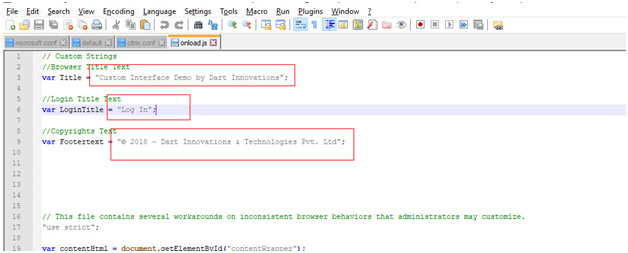
-
Save the file.
Image size limits
The installation fails with errors if logo.png is larger than 10 KB or background.jpg is larger than 200 KB. Optimise the images before you install.
Install the theme#
- In the theme package, right-click
BCthemeCommands.ps1and select Run as administrator. - Wait a few seconds. A PowerShell window opens and closes by itself when the installation finishes.
- Open your ADFS logon page in a browser. You see the new theme.
Restore the default theme#
To switch back to the default ADFS theme, open PowerShell as administrator and run:
Set-AdfsWebConfig -ActiveThemeName "default"
Remove a custom theme#
To delete a custom theme from ADFS, open PowerShell as administrator and run the command below. Replace Bluecorp with the name of your theme.
Remove-AdfsWebTheme -TargetName "Bluecorp"
Troubleshooting#
- The installation shows errors. Check the image sizes:
logo.pngmust be 10 KB or smaller andbackground.jpg200 KB or smaller. - You want to undo the installation. Restore the default theme.