
Customize the RD Web Access theme on RDS 2016
Replace the logo, background, favicon, help icon and page text of your RD Web Access 2016 Quick Theme.
After you install the theme, you can add your own logo, background and text. You do this by replacing files in the theme's theme-assets folder.
Find the theme assets#
Open the theme-assets folder for the language you are customizing:
C:\Windows\Web\RDWeb\Pages\en-US\theme-assets
Replace en-US with your language folder. This folder holds the logo, background, help icon, favicon and the customStrings.js file.
Replace the images#
Save your image with the file name in the table, then copy it into theme-assets and replace the existing file.
| File | What it is | Recommended size |
|---|---|---|
logo.png |
Your logo | Height up to 60 px. Any width. |
bg.jpg |
Page background (JPEG) | 1920 × 906 px. Any size works. |
Favicon.png |
Browser tab icon (PNG) | 75 × 75 px |
help.jpg |
Help icon (optional) | 22 × 22 px |
The sizes are recommendations, except the logo height. You can use larger or smaller images: place them, check the page in a browser and adjust.
Tip
Keep the background file as small as you can, so the page loads fast.
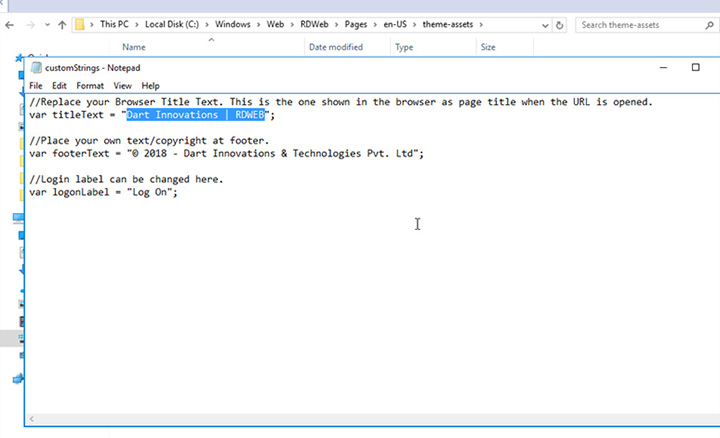
Change the page text#
- Open
customStrings.jsintheme-assetswith a text editor, such as Notepad. -
Change the values of these variables:
Variable Text it sets titleTextThe page title shown in the browser tab footerTextThe footer text, such as your copyright line logonLabelThe label of the logon button -
Save the file.
Troubleshooting#
- Windows is on a different drive. This guide uses
C:\because it is the most common system drive. If Windows is installed on another drive, use that drive letter instead. - Your changes don't show in the browser. This is usually the browser cache. Do a hard refresh or clear the browser cache, then reload the page.
- Something went wrong. Restore the backup of the default files you made before installing. Always back up the default interface files before you install a theme, customize it or apply an update.