Get started with License Web
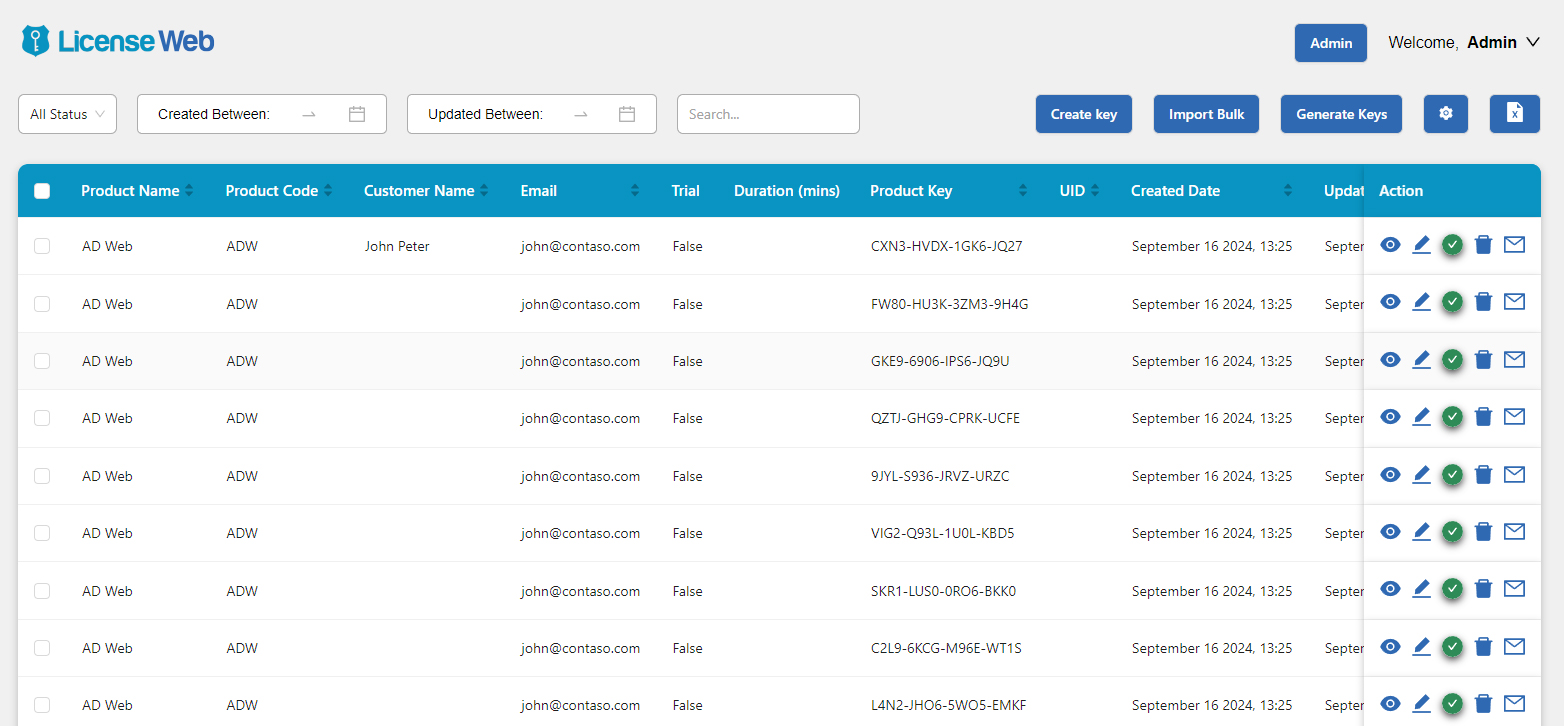
Use the License Web dashboard to find, create, import, generate and export product keys and follow each key's history.
After you sign in, the dashboard opens. You manage all your product keys from here.
Filter and search keys#
- Filter by Created Between or Updated Between date range.
- Filter by status with the status list (All Status by default).
- Type in Search to find keys by key, product name, customer, email or any other column in the list.
Choose which columns to show#
Select the gear icon at the top and choose the columns you want in the list. This only changes the dashboard list; the key detail page always shows every field.
Create a key#
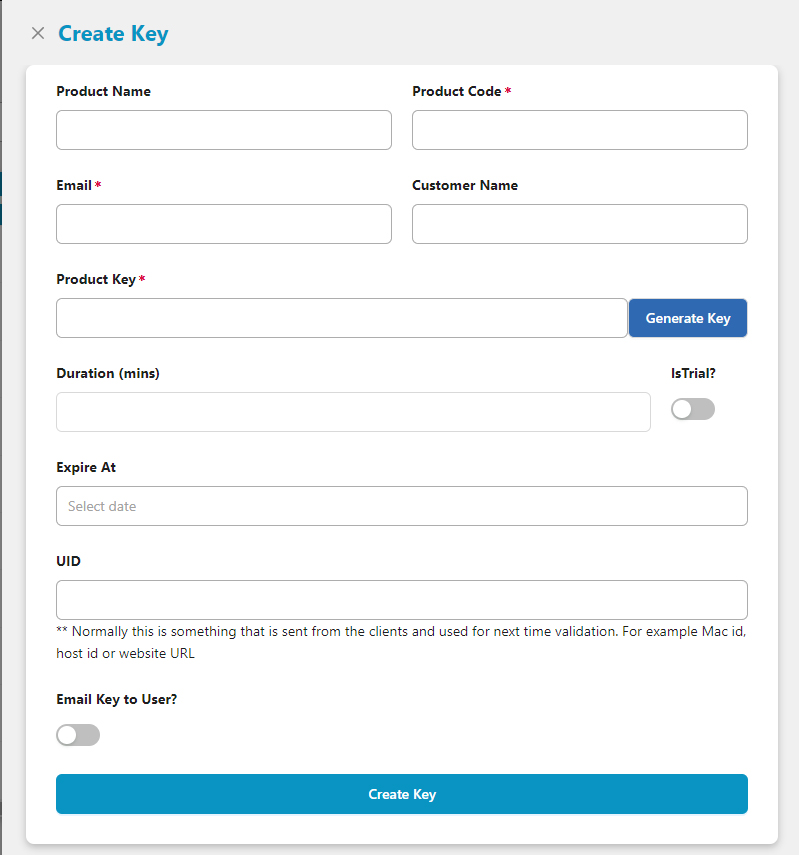
- Select Create key.
-
Enter the Product Code, Email and Product Key. These fields are required.
To create a random key from the rules you set under Admin > Auto Generator, use Generate Key.
-
To email the key to the customer, turn on Email Key to User.
Import keys in bulk#
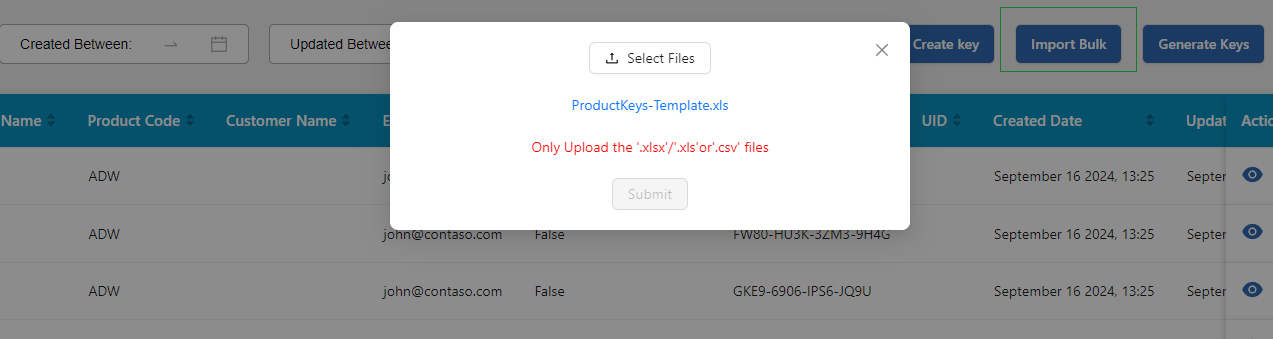
Use Import Bulk to import keys from an .xls, .xlsx or .csv file. Product Code, Email and the key are required for each row.
Download the template ProductKeys-Template.xls from the import panel. It has the column names and sample data to follow.
Generate keys#
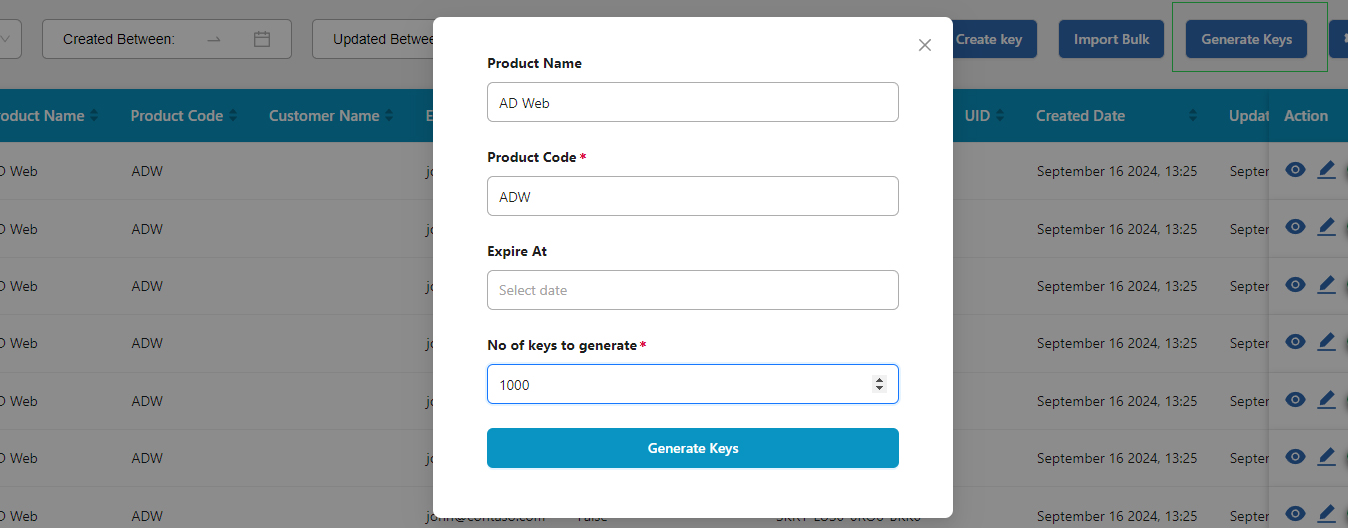
Generate Keys creates thousands of keys at once and exports them to an Excel file. Import that file into other systems.
For example, if your web store sends a key to each buyer, generate the keys in License Web and import them into the store instead of creating each key by hand.
Note
Dart Innovations uses this with a custom Magento store and the Product Keys Delivery (PKD) plugin: keys are generated in License Web and imported into the PKD plugin.
Export data#
Select the export button at the top right to export your product key data.
Act on a key#
Use the action buttons on the right of each key to view, edit or delete it. From the same actions you can also activate or deactivate the key, and send or resend an email to the customer.
View the action log#
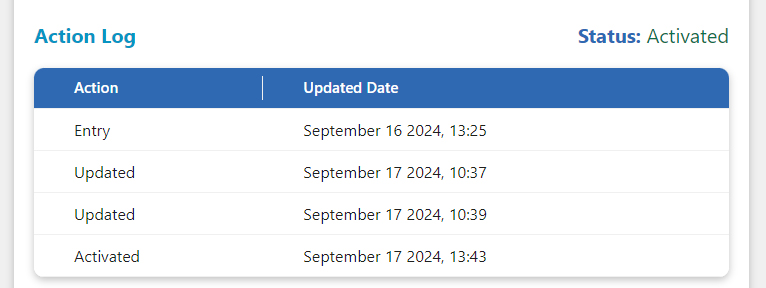
Every action on a key is logged, whether you made it in the portal or it came through the REST API. Open the key's detail page to see the log, with a date stamp on each action.