Manage domains
Add Active Directory domains to AD Web, choose the primary domain and override global settings for a single domain.
You can connect as many Active Directory domains to AD Web as you need. Adding a domain works the same way as connecting the primary domain in the setup wizard.
Add a domain#
-
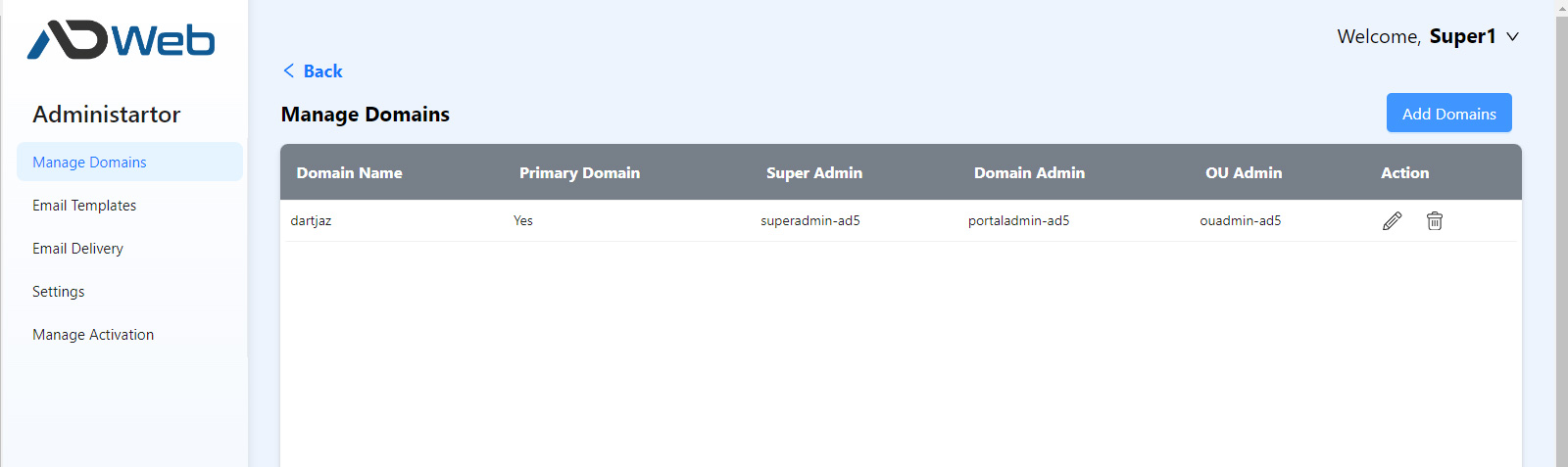
Go to Admin > Domains.
-
Select Add A Domain.
-
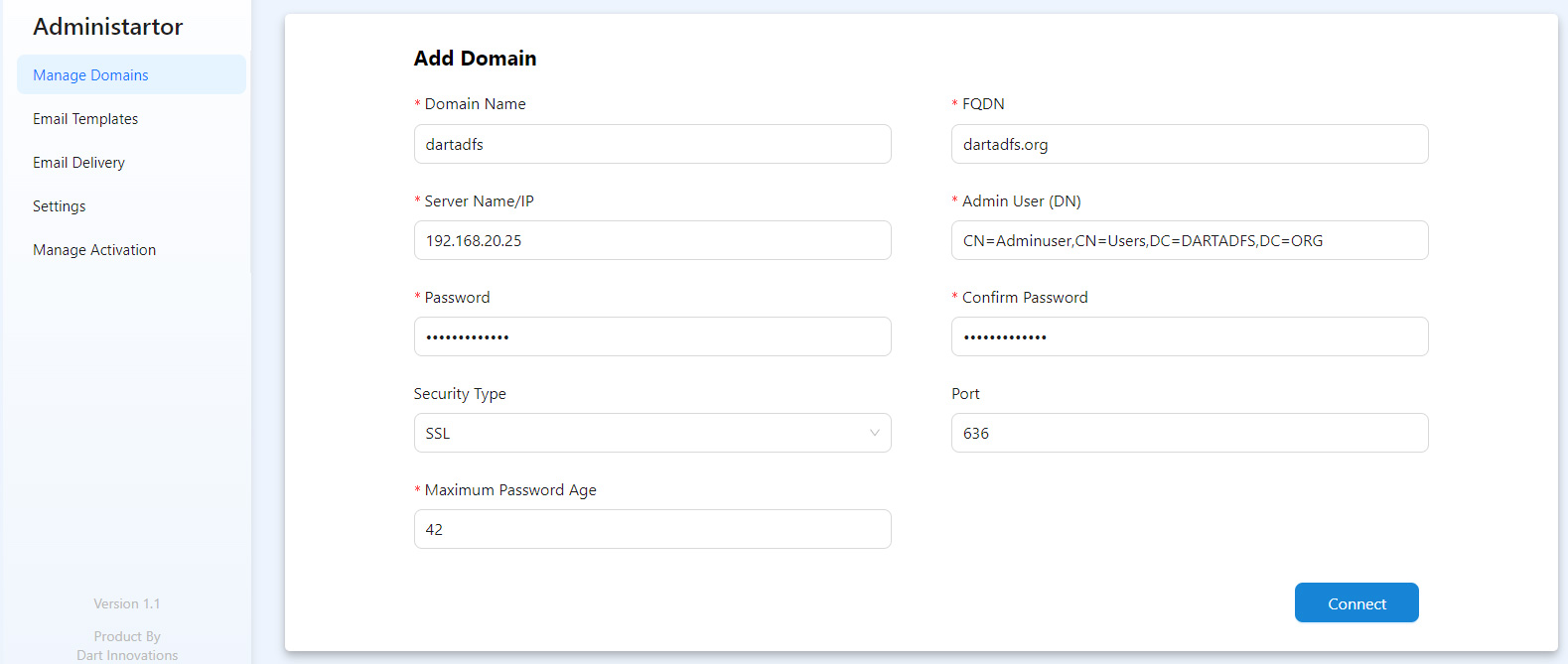
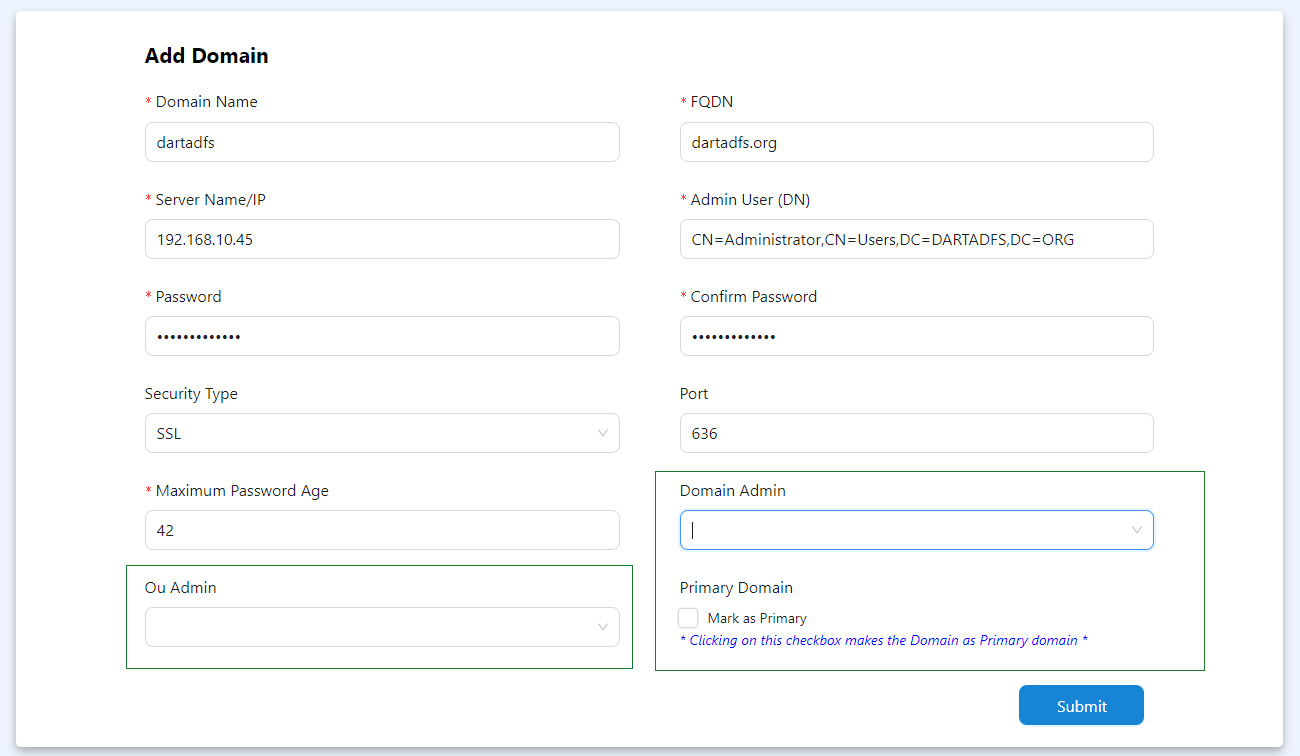
Fill in the connection details:
- Use SSL or TLS. Without it, password resets and some other features don't work properly. Plain connections are not recommended.
- For help finding a distinguished name (DN), see How to get the distinguished name of a user, OU or group.
- Set the password age to match Maximum password age in your Active Directory Group Policy, so that password expiry shows accurately. You can set it later.
-
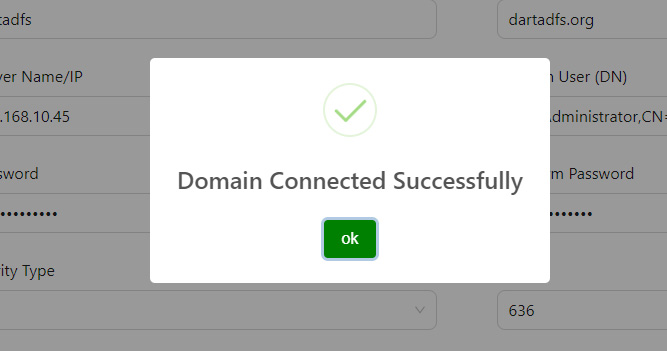
Select Connect. If the connection fails, AD Web shows an error message. If it succeeds, you see a success message.
-
Select OK. The form now shows the Ou Admin, Domain Admin and Primary Domain options.
-
Optionally, map groups to the admin roles and choose whether this is the primary domain. See Admin roles.
- Select Submit.
Change the primary domain#
You can make any domain the primary domain.
Warning
Before you switch, make sure you have admin access to the new domain and that you are a member of the Super Admin group.
Override settings for a domain#
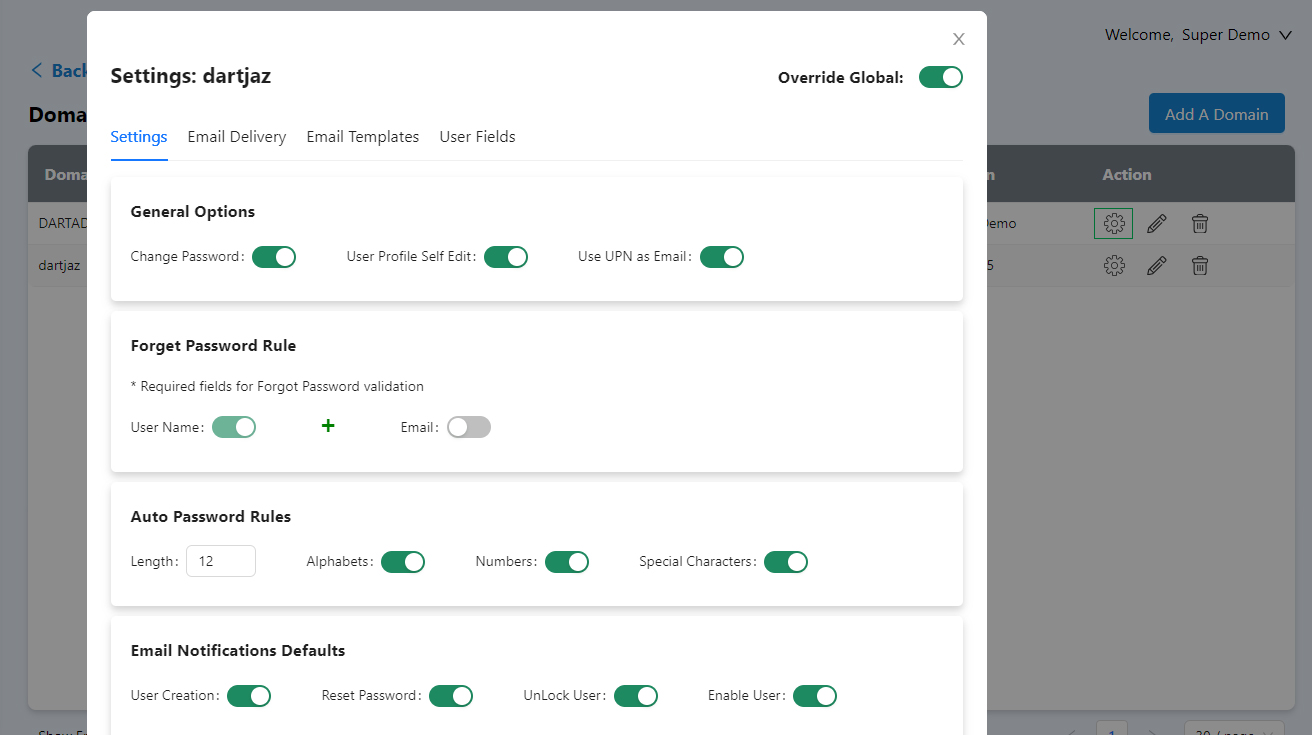
After you add a domain, a settings (gear) icon appears next to it. Select it to override global settings for that domain only:
- Settings
- Email delivery
- Email templates
- User fields
For example, you can send that domain's email through a different service, with its own from address and templates.