Get started with AD Web
Find your way around the AD Web dashboard and manage users, passwords, groups and OUs, import and export records, and run bulk actions.
After you sign in, AD Web opens the dashboard. This page explains its parts and the everyday tasks you can do there.
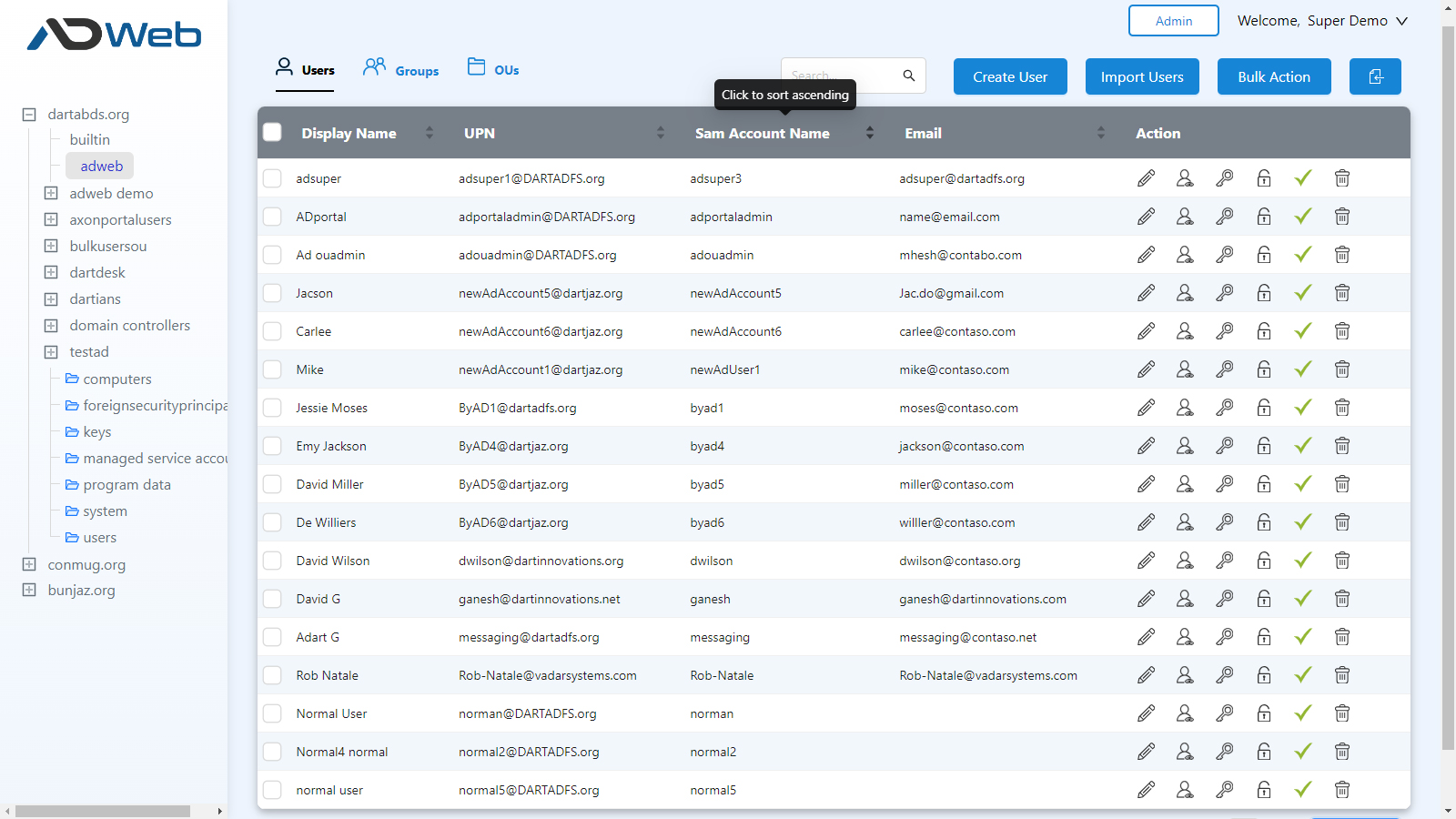
The dashboard has a tree view on the left and tabs for Users, Groups and OUs.
Explorer#
The explorer on the left lists every Active Directory domain you can access. Use it to move between domains and OUs. The tree shows where you are.
Search#
The search bar at the top is a full-text search, so you can find an object by any field. For example, search by email, SAM account name or display name.
Users and actions#
Each row in the users grid has action buttons on the right:
- View, Edit and Delete the user.
- Locked users show a Locked status. Select it to unlock the user.
- Select the green tick icon to enable or disable the user.
- Select the reset password icon to reset the user's password. There are three methods, described below.
Note
For security, AD Web excludes the Administrator group from changes. You can turn this off, change it, or add more groups to exclude in the appSettings.json file in the AD Web root folder.
Reset a user's password#
Method 1: Random password#
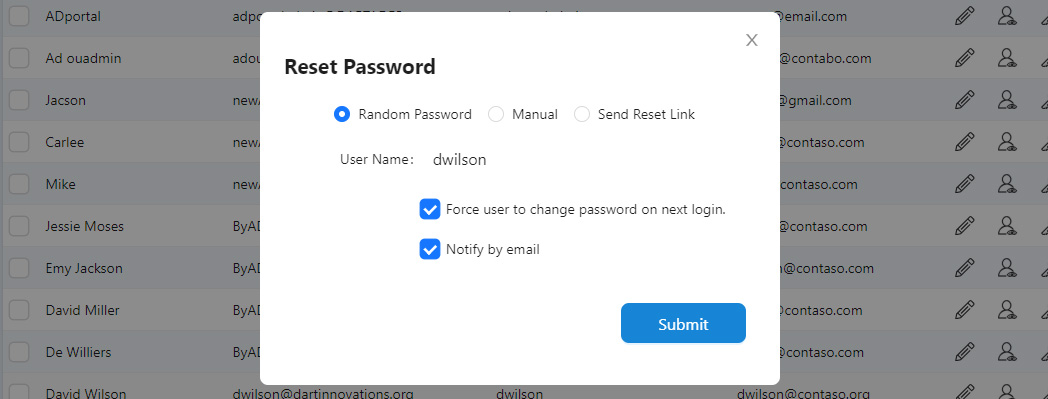
AD Web generates a random password and emails it to the user.
- Clear the email notification if you don't want to send it, for example for a service account.
- Select the option to force the user to change the password at next sign-in.
You set the rules for random passwords in Admin > Settings. See Settings.
Method 2: Manual password#
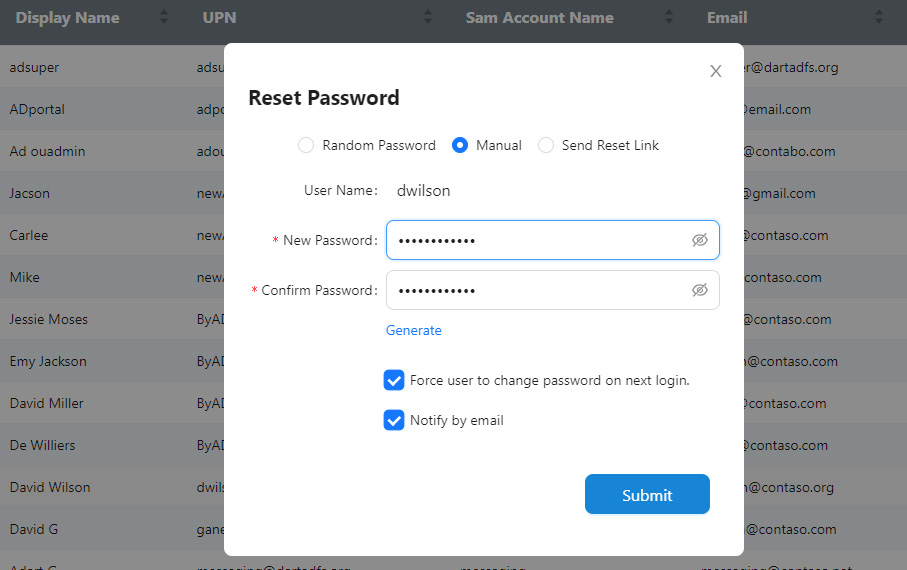
Enter your own password, or use Auto Generate. Use this method when you need to know the password.
Method 3: Send reset link#
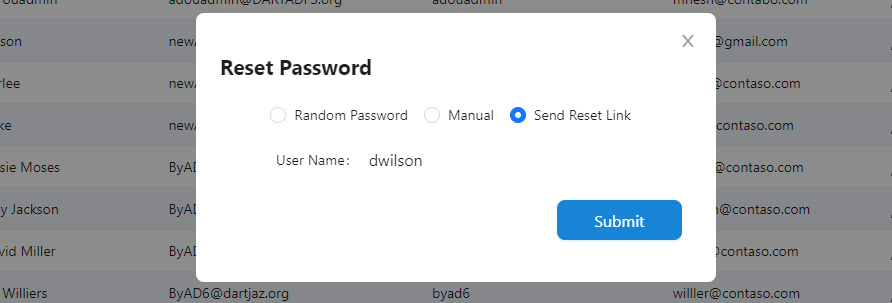
AD Web emails the user a link. The user opens it and sets their own password. The link expires after one day by default; you can change this in Settings.
Groups#
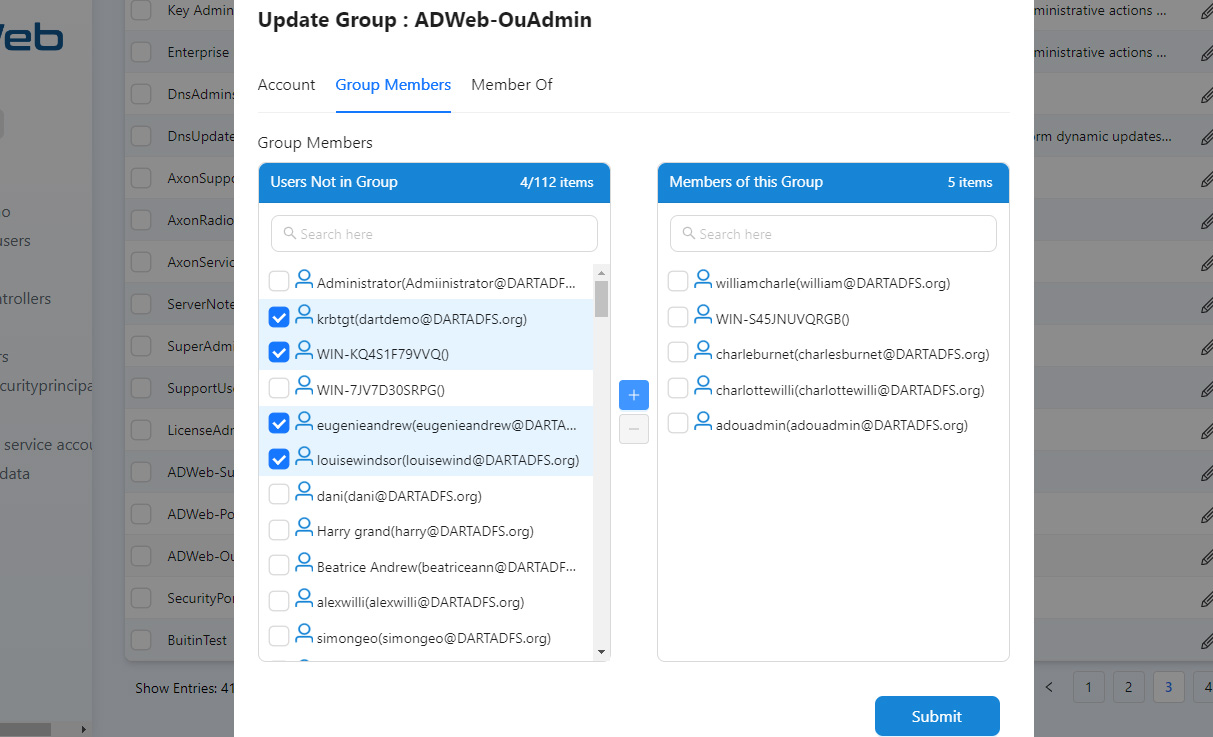
On the Groups tab you can add, edit and delete Active Directory groups. You can also add or remove several members in one step. The Members Of tab works the same way.
Organisational units (OUs)#
On the OUs tab you can add, edit and delete OUs. You can also protect an OU from accidental deletion, or remove that protection, as you would in the native Active Directory console.
Export records#
Use the export option at the top right of the grid to export users, groups or OUs in one step. AD Web exports the data in Excel format.
Import users#
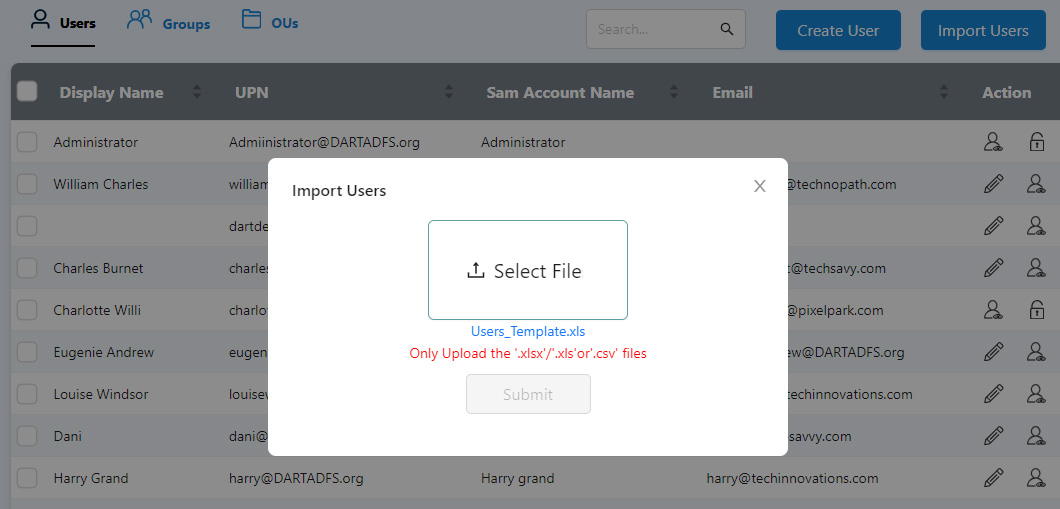
Create Active Directory users in bulk from an Excel or CSV file. AD Web provides a sample template to fill in with the new users' details before you import it.
Bulk actions#
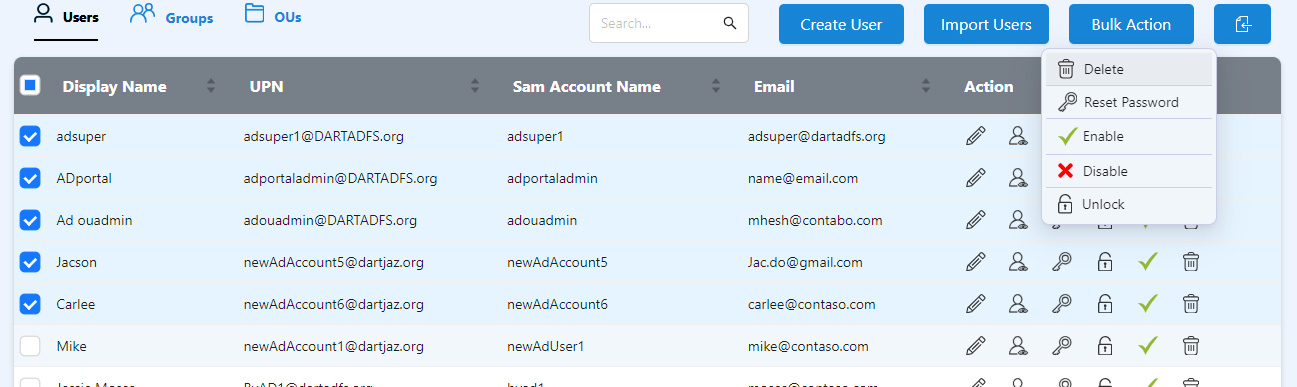
Bulk actions run one action against several users, or all users, at once.