
Email templates
Edit the subject and body of each AD Web email notification and personalise them with short codes.
Every email AD Web sends uses a template that you can edit. This page explains how to edit templates, which short codes you can use and when each template is sent.
You can also use different templates for a single domain. See Manage domains.
Edit a template#
-
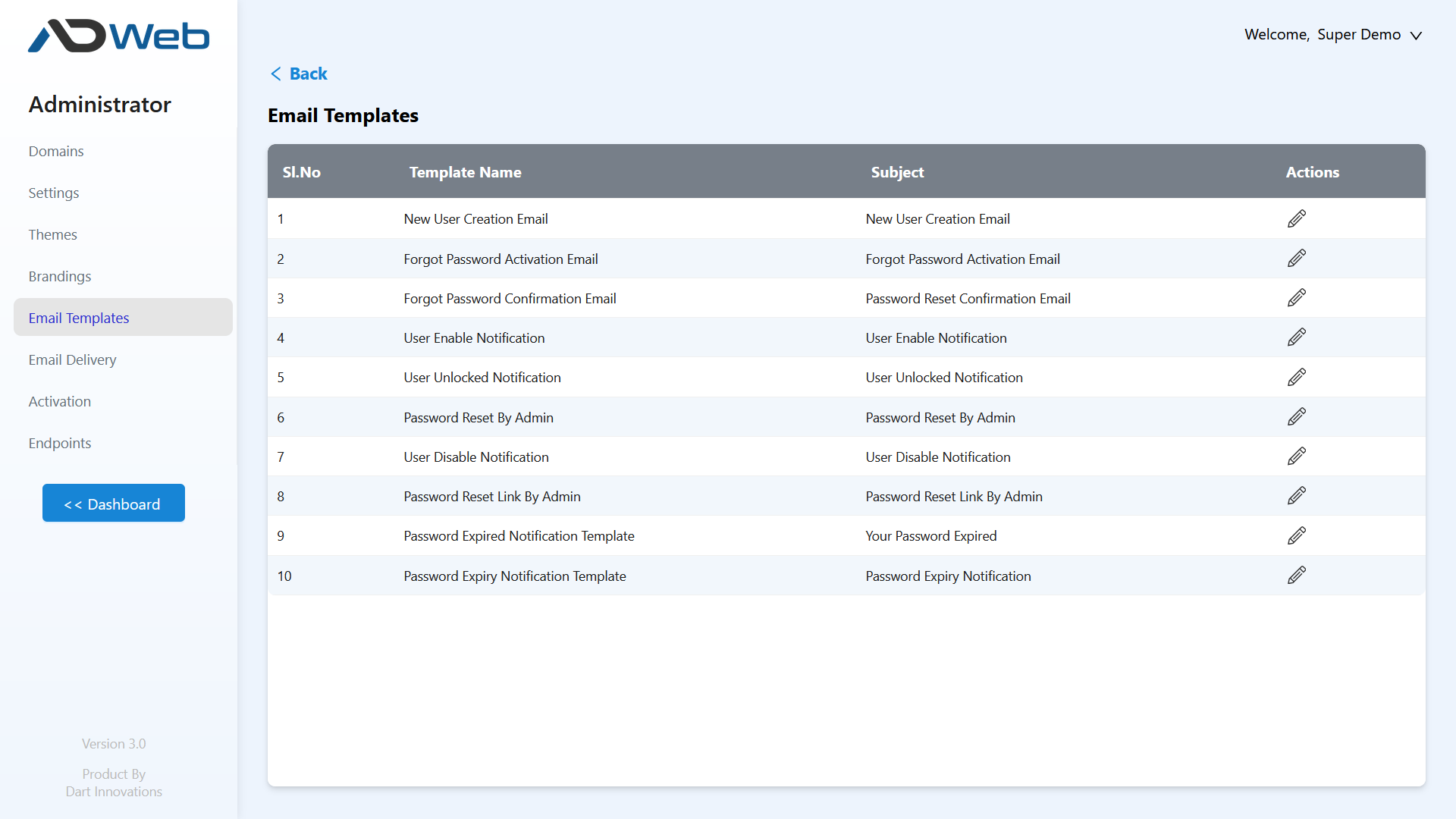
Go to Admin > Email Templates.
-
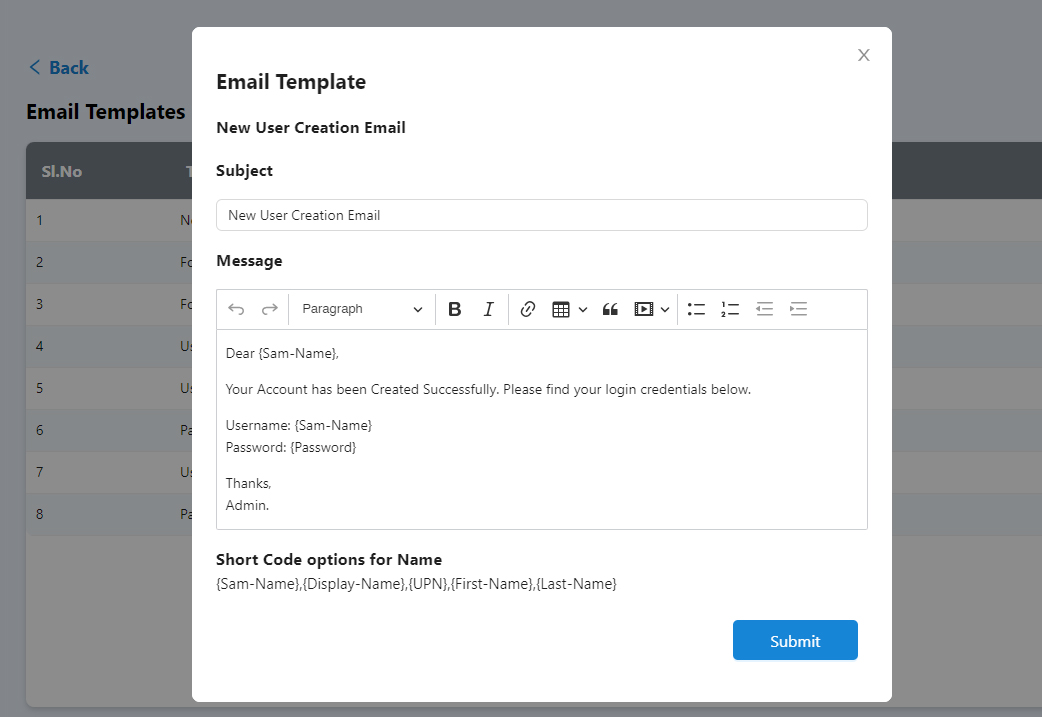
Select the edit (pencil) icon on the right of the template. For example, edit New User Creation Email.
-
Change the fields:
Field Description Subject The subject of the email sent to the user. Message The body of the email sent to the user. -
Save the template.
Short codes#
Short codes insert values from Active Directory when the email is sent. The short codes available for each template are listed at the bottom of the template editor.
For example, to greet the user by name, put {Display-Name} in the salutation. Other examples are {Sam-Name} and {UPN}.
| Short code | Description |
|---|---|
{Display-Name} |
The user's display name from Active Directory. |
{link} |
The URL from the browser address bar. Use it in forgot password emails, so the user returns to the URL where they asked for the reset. |
{BaseURL} |
The base URL you set in the admin settings. Use it in Password Reset By Admin and password expiry emails. Expiry notifications are sent by a scheduler, so there is no browser URL and {BaseURL} is the right choice. |
Warning
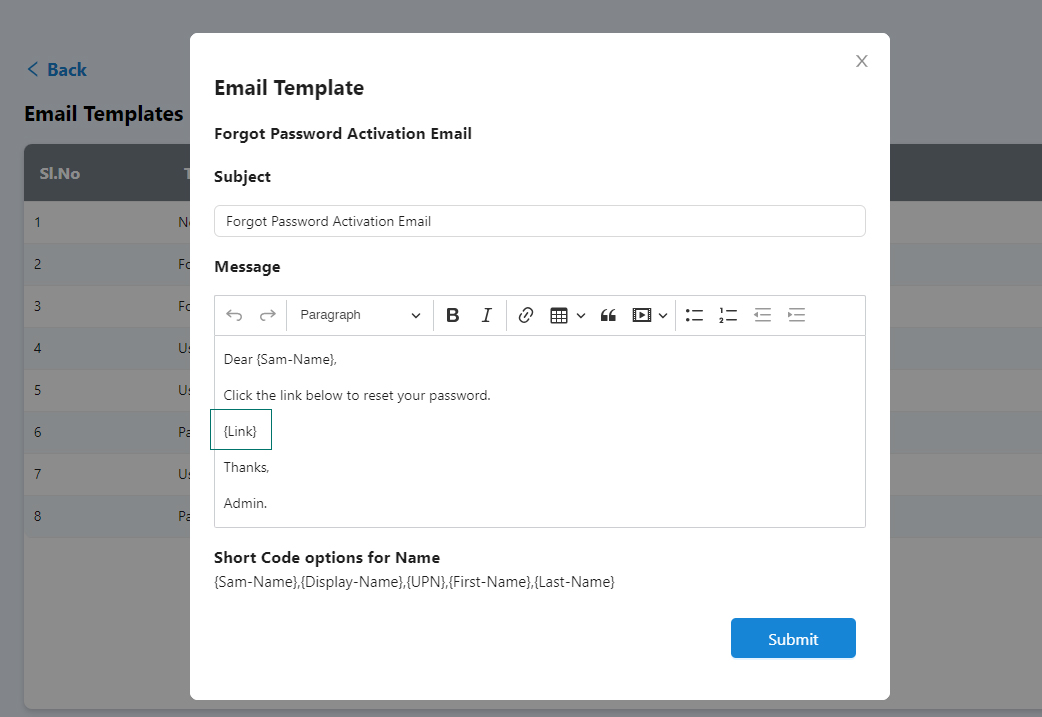
Password templates contain {link}, which inserts the password reset URL. Don't remove it unless you have a specific reason.
Templates and when they are sent#
| Template | Sent when |
|---|---|
| New User Creation Email | You create one or more users. |
| Forgot Password Activation Email | A user passes verification on the forgot password page. The email contains the reset link. |
| Forgot Password Confirmation Email | A user resets their password with the link. |
| User Enable Notification | You enable users and choose to notify them. |
| User Unlocked Notification | You unlock users and choose to notify them. |
| Password Reset By Admin | An admin resets a password with the random or manual method. You can turn off the notification for the manual method; the random method always sends the email. |
| User Disable Notification | You disable users and choose to notify them. |
| Password Reset Link By Admin | An admin resets a password with Send Reset Link. |
| Password Expiry Notification | Before a user's password expires. Off by default. See Password expiry notifications. |
| Password Expired Notification | After a user's password has expired. Off by default. See Password expiry notifications. |