
Configure a reverse proxy
Publish AD Web through nginx or IIS as a reverse proxy that forwards requests to http://localhost:6060.
Running AD Web behind a reverse proxy is the recommended, more secure way to publish it. You set it up as you would for any other web application: forward requests to http://localhost:6060, or to the server's IP, unless you changed the default port.
Configure nginx#
-
If nginx isn't installed, install it:
sudo apt install nginx -
Open your nginx configuration file,
/etc/nginx/sites-available/default. - Add the following
serverblock. Changeserver_nameand the SSL certificate paths to your own. -
In
proxy_pass, change the IP to your AD Web server's IP.server { listen 80; listen 443 ssl http2; server_name adweb.yourdomain.com; ssl_certificate /etc/nginx/ssl/yourdomainssl.pem; ssl_certificate_key /etc/nginx/ssl/yourdomainssl.key; location / { proxy_pass http://127.0.0.1:6060; proxy_http_version 1.1; proxy_set_header Upgrade $http_upgrade; proxy_set_header Connection keep-alive; proxy_set_header Host $host; proxy_cache_bypass $http_upgrade; proxy_set_header X-Forwarded-For $proxy_add_x_forwarded_for; proxy_set_header X-Forwarded-Proto $scheme; } } -
Restart nginx:
sudo service nginx restart
You can now reach AD Web on its public URL through nginx. Apache and other Linux reverse proxies need a similar setup.
Configure IIS#
IIS works as a reverse proxy with the Application Request Routing (ARR) and URL Rewrite modules. For help installing them, see Setting up IIS as a reverse proxy for the .NET Core Kestrel web server.
Before you begin#
-
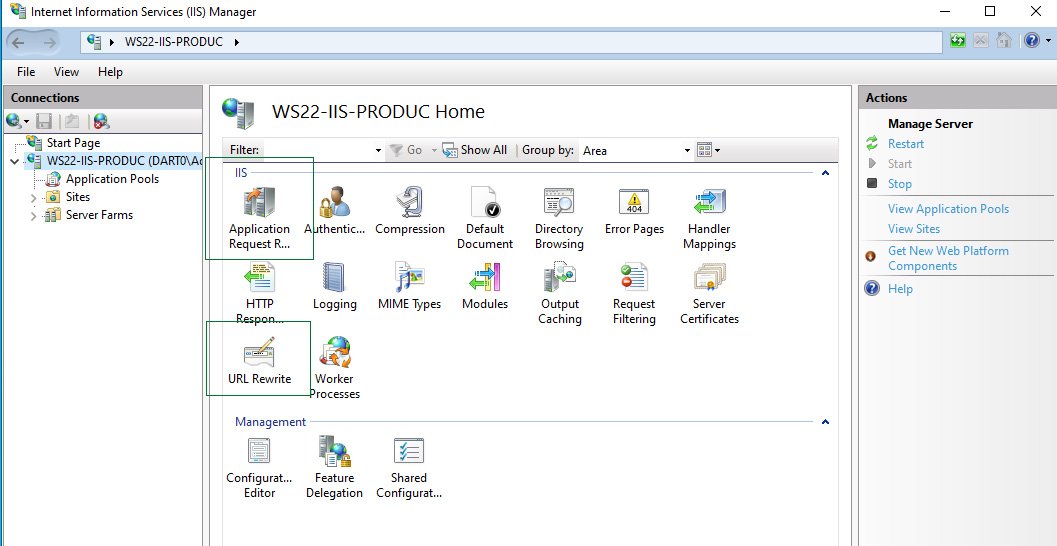
Check that IIS shows the Application Request Routing Cache and URL Rewrite modules.
-
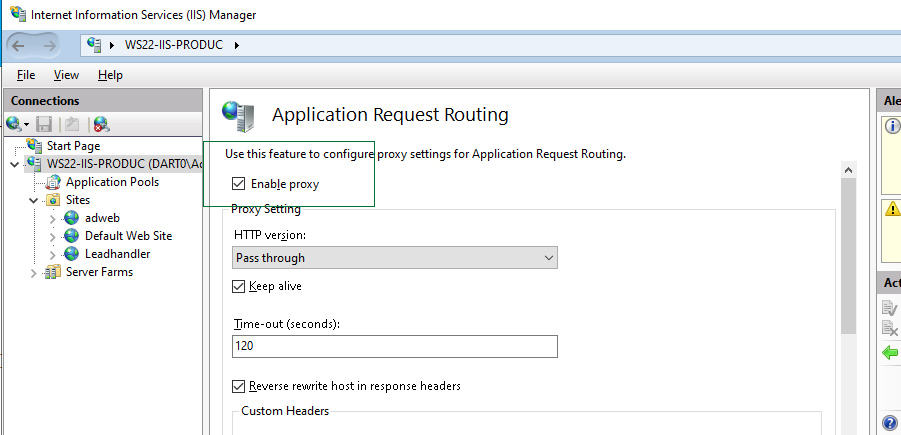
Make sure the server proxy is enabled: select Application Request Routing Cache, then Server Proxy Settings, and check Enable proxy.
Add the reverse proxy rule#
- Create a new website, or use an existing one.
- Configure the site bindings for your public URLs.
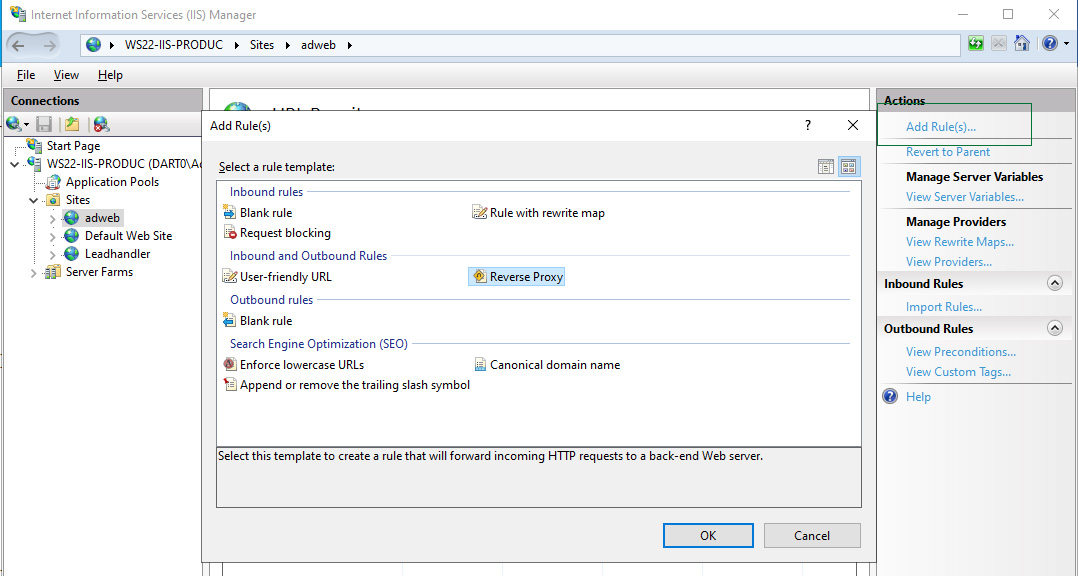
- Select the website, then select URL Rewrite.
-
Select Add Rule(s), then Reverse Proxy.
-
Set up the rule:
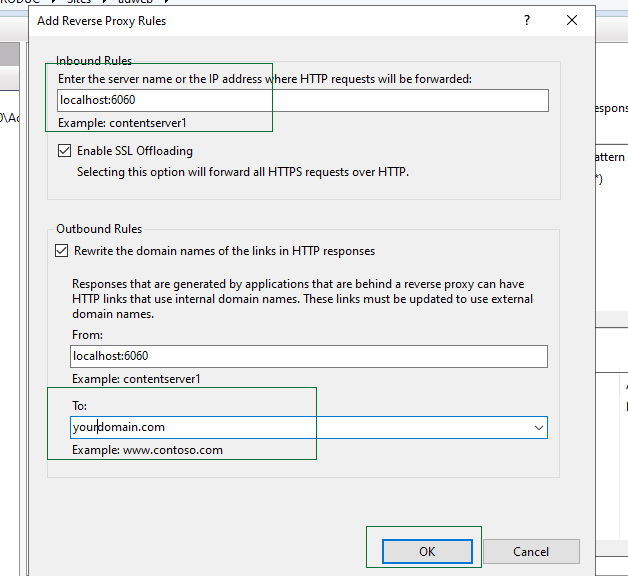
- Under Inbound Rules, enter
localhost:6060as the server to forward requests to. - Select Enable SSL Offloading.
- Under Outbound Rules, select Rewrite the domain names of the links in HTTP responses. Set From to
localhost:6060and To to your public domain.
- Under Inbound Rules, enter
-
Select OK, then restart the website or IIS.
You can now reach AD Web publicly through IIS.