
Portal branding
Create themes and bind them to URLs so each client or department gets its own branded AD Web portal, and restrict which hosts can access AD Web.
Portal branding lets you white-label AD Web and brand it per URL. You do this with the Themes and Brandings pages in the admin area. You can create any number of themes and brandings, and bind them to any number of URLs.
Themes#
AD Web comes with a few built-in themes with different layouts. You can create your own theme based on a built-in theme or on one of your custom themes.
Create a theme#
-
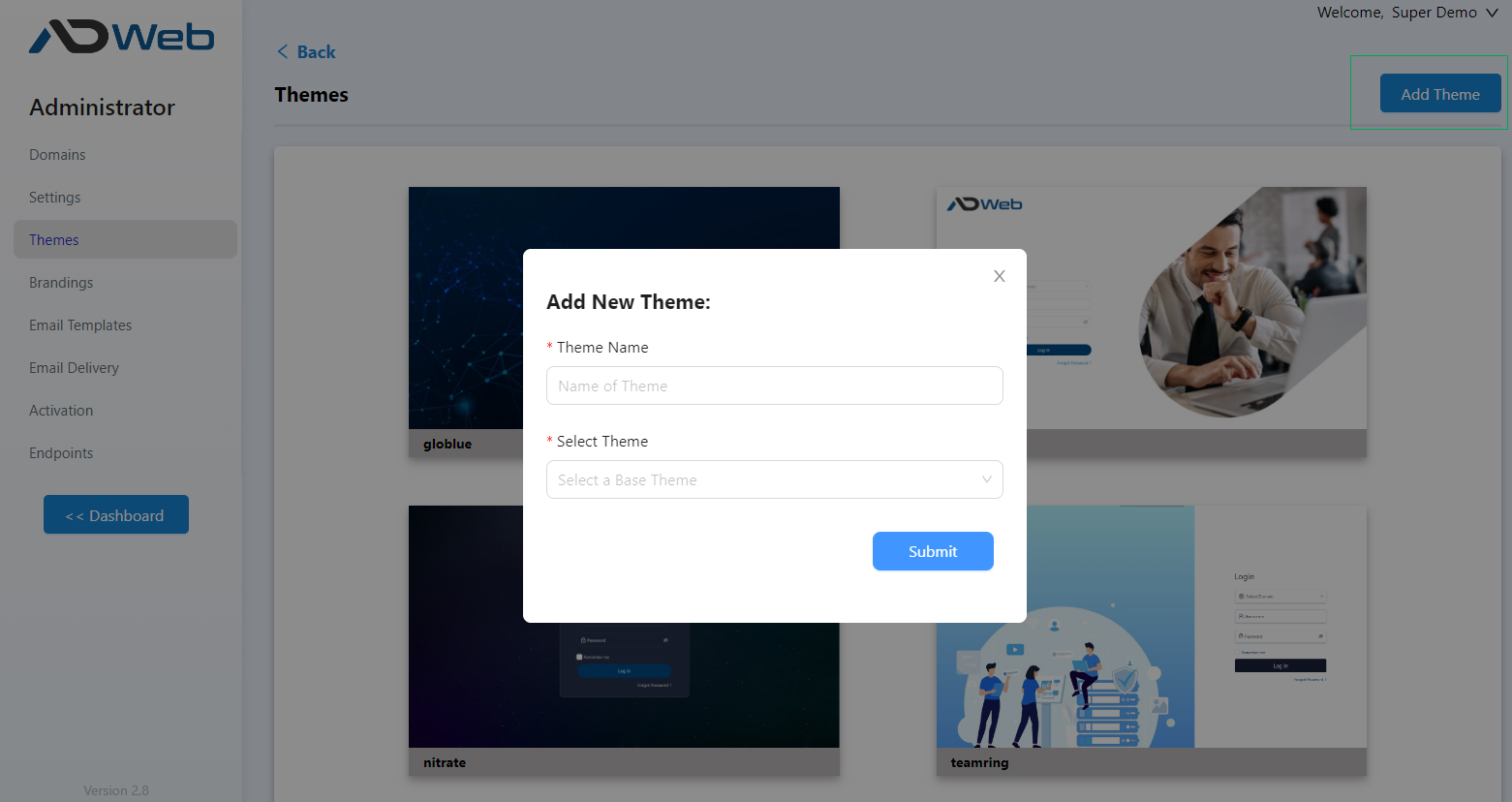
Go to Admin > Themes and select Add Theme.
-
Fill in the fields:
Field Description Theme Name A name for your new theme. Select Theme The existing theme to copy as a starting point. -
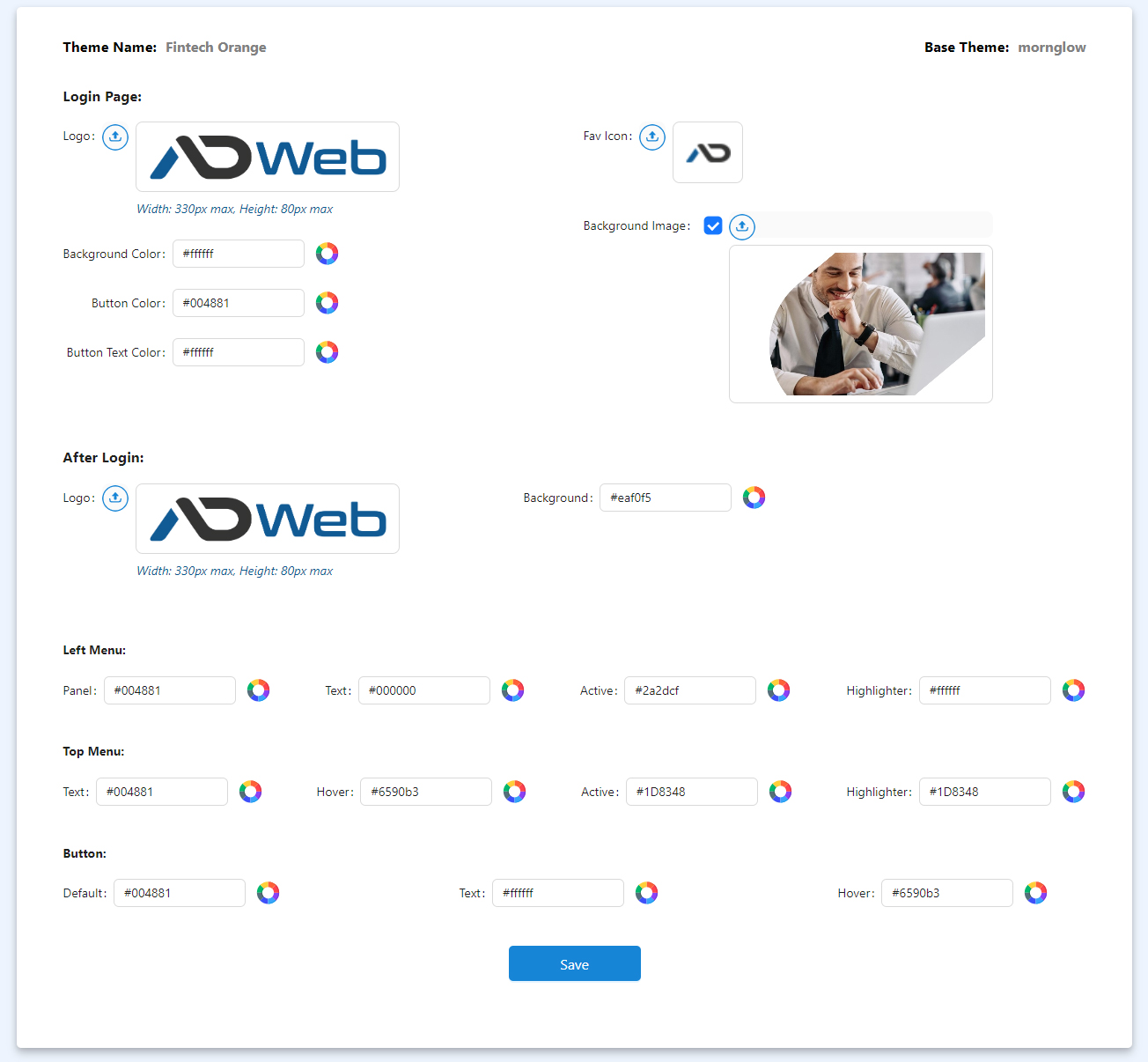
Select Submit. AD Web creates the theme and opens the customiser.
-
Customise the theme and select Save.
Next, bind the theme to a URL on the Brandings page.
Customise beyond the admin panel#
Each theme is a folder in \Dart\ADWeb\wwwroot\themes\. For example, a theme named Fintech Orange is in \Dart\ADWeb\wwwroot\themes\Fintech Orange.
| File | Use |
|---|---|
style.css |
Add your own CSS for changes the customiser doesn't cover. |
footer.html |
A custom footer for the theme, in HTML or plain text. |
Brandings#
A branding binds a theme to a URL and controls which domains that URL shows. Use brandings when you host several customers, or separate departments, so that:
- Users reach AD Web on their own branded URL.
- Users see only the Active Directory domains they can access.
- The domain dropdown is hidden, to avoid confusion for OU Admins or regular admins.
- Customers can't see other customers' domains.
Add a branding#
-
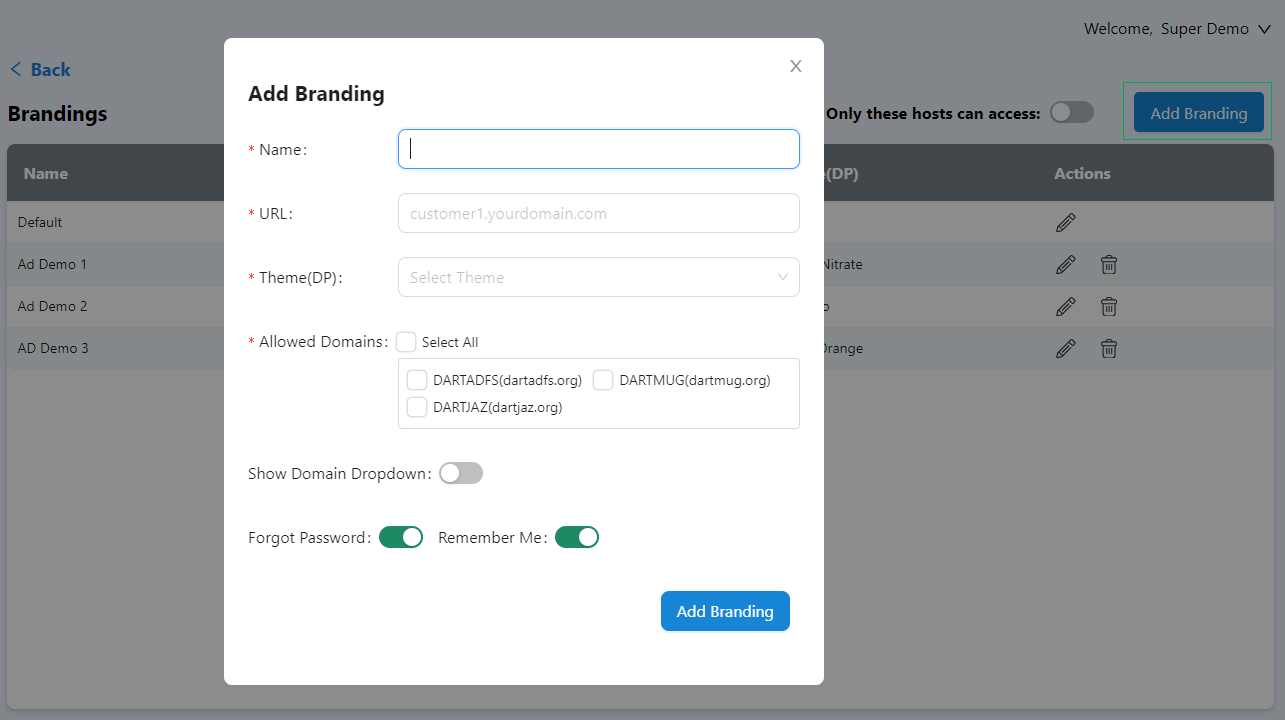
Go to Admin > Brandings and select Add Branding.
-
Fill in the fields:
Field Description Name A name for your reference. URL The URL to bind the theme to. Enter the domain only, without http://,https://or a port.Theme The theme to use for this URL. Allowed Domains The Active Directory domains this URL shows. For example, if your customer Fintech may use only one domain, select only that domain. -
Optionally, turn off the domain dropdown. This is useful when a customer, department or group uses only one domain.
- Optionally, show or hide Forgot Password and Remember Me for this URL.
- Save the branding.
Restrict access to listed hosts#
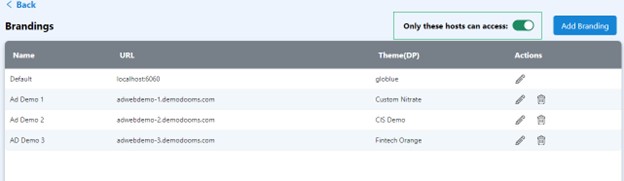
Turn on Only these hosts can access for extra security. AD Web then accepts requests only on the URLs listed on the Brandings page and rejects all other origins.
Warning
Add every URL you use to reach AD Web to this list, including URLs that don't have their own branding. Otherwise you can lock yourself out of those URLs.