
Password expiry notifications
Email users before and after their Active Directory password expires, on a schedule of days you choose.
AD Web can email users before their password expires and after it has expired. You choose the days, for example 30, 10 and 1 day before expiry.
Both notifications use email templates that are off by default. Turn them on in Admin > Email Templates.
Note
AD Web works out expiry dates from the password age you set for each domain. Make sure it matches Maximum password age in your Group Policy. See Manage domains.
Notify users before their password expires#
-
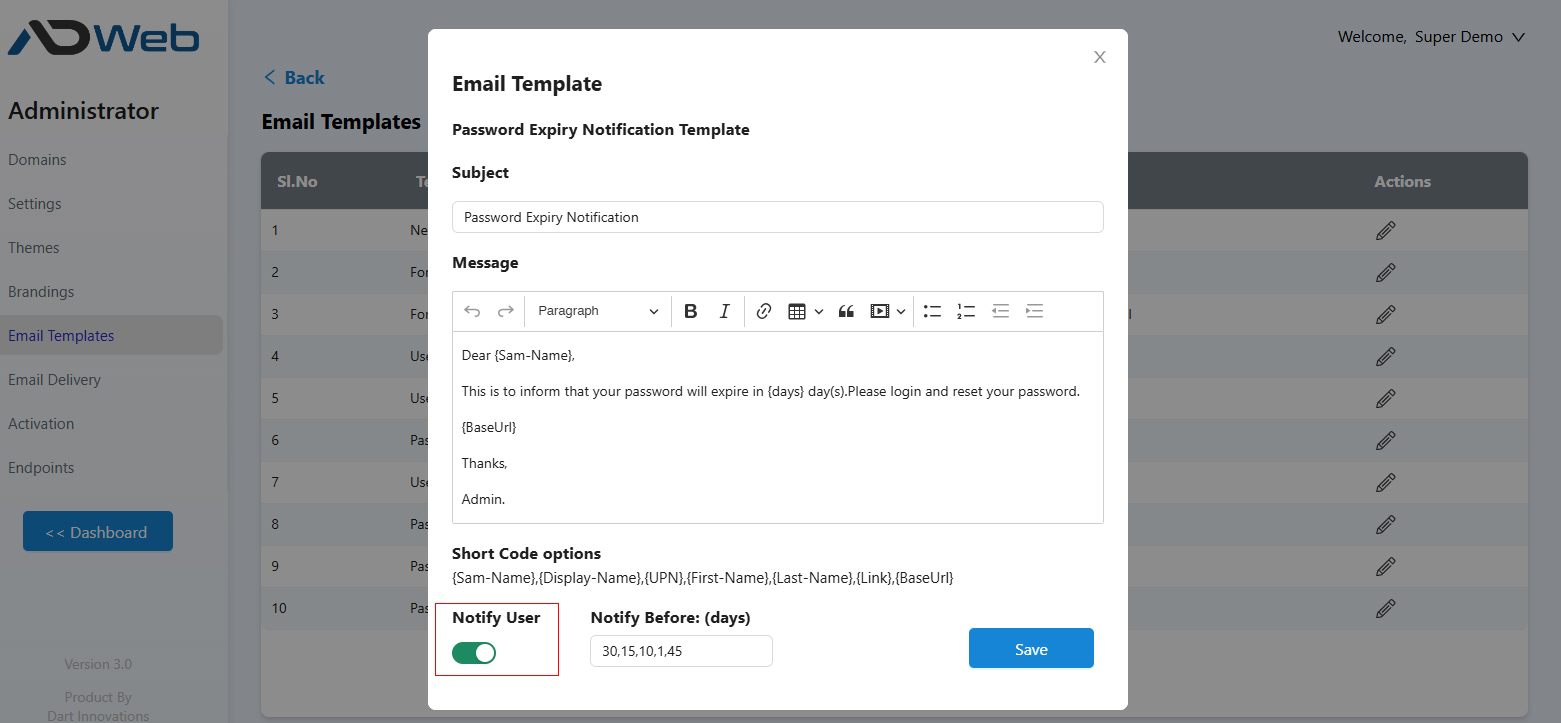
Go to Admin > Email Templates and edit Password Expiry Notification.
-
Set the fields:
Field Description Notify User Turn on to email users the number of days before expiry set in Notify Before. Notify Before Days before expiry to send the email, separated by commas, for example 30,10,1. There is no limit; most administrators use two or three reminders. -
Save the template.
Notify users after their password has expired#
-
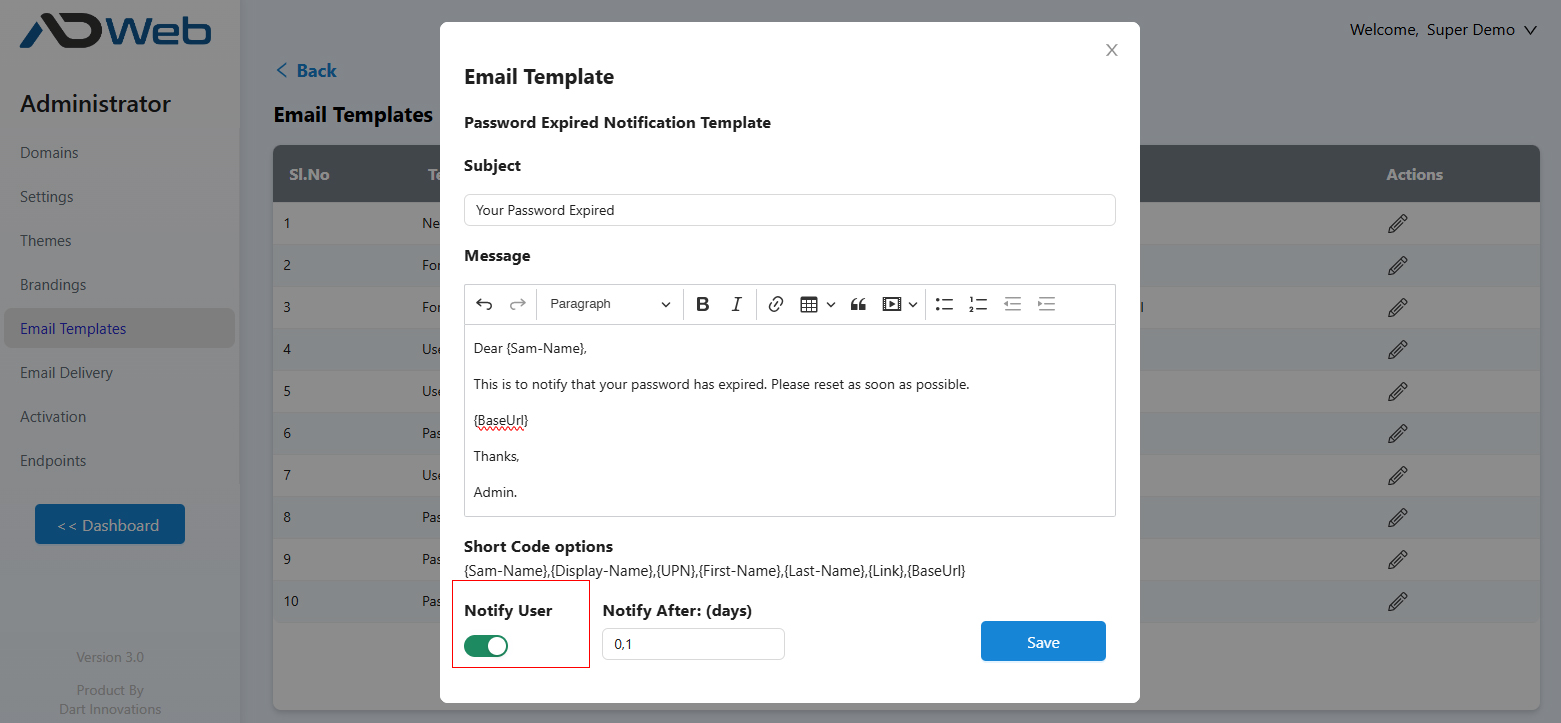
Go to Admin > Email Templates and edit Password Expired Notification.
-
Set the fields:
Field Description Notify User Turn on to email users after their password expires. Notify After Days after expiry to send the email, separated by commas. There is no limit. Most administrators use two reminders: 0(the day it expires) and1(the next day). -
Save the template.
Tip
These notifications are sent by a scheduler, not from a browser session. Use {BaseURL} rather than {link} for links in these templates. See Short codes.
Override for a domain#
You can set different templates and schedules for a single domain. Go to Admin > Domains, select the settings icon for the domain, and select Email Templates.