Add a pet
Create a pet record, link it to a pet owner and send the owner a welcome message.
Add a pet when it comes to your clinic for the first time. Every pet belongs to a pet owner. VetNvet gives each new pet a unique Pet ID.
Go to Pets in the left menu to see all your pets.
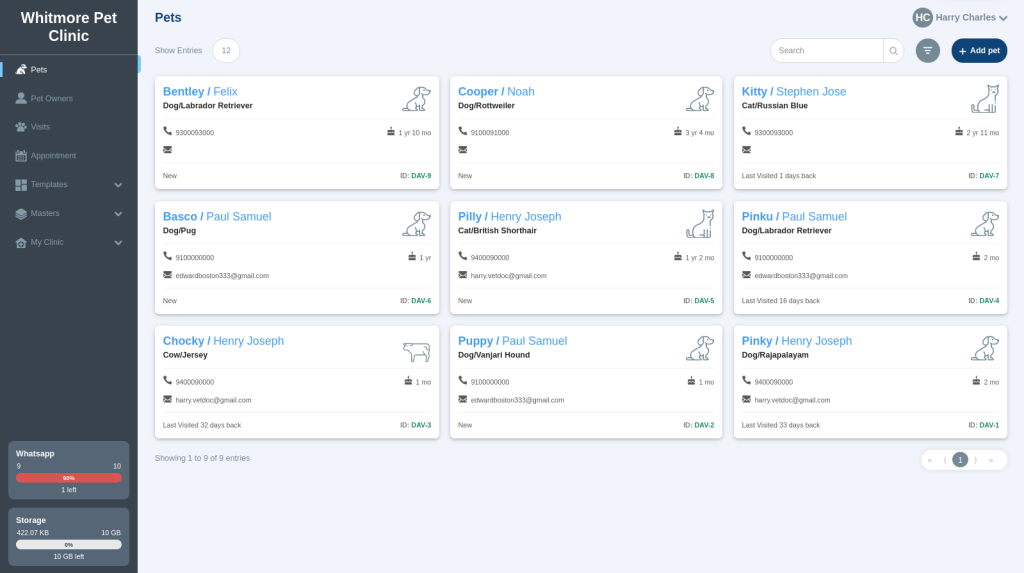
Add a pet#
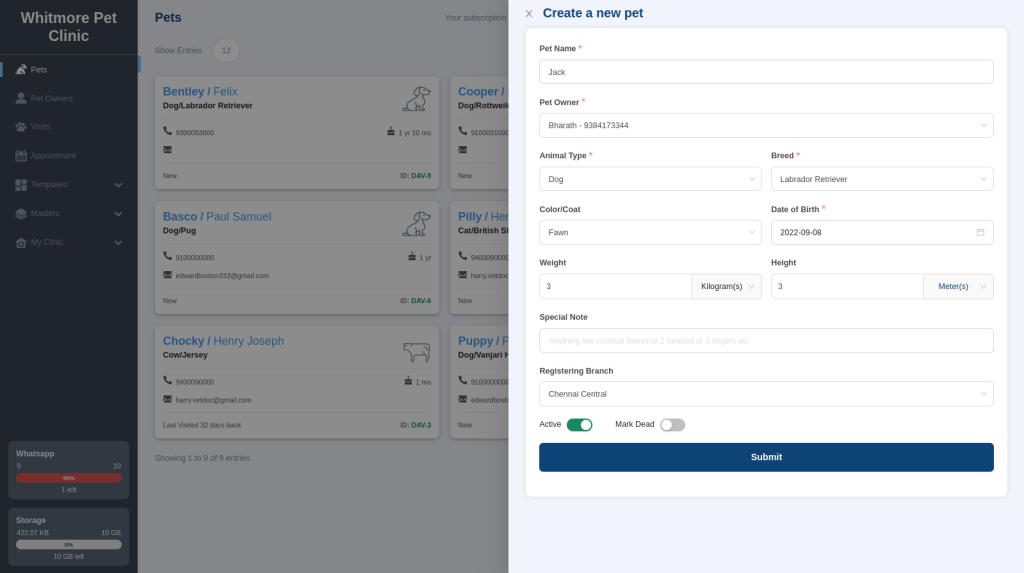
- On the Pets page, select Add Pets at the top right.
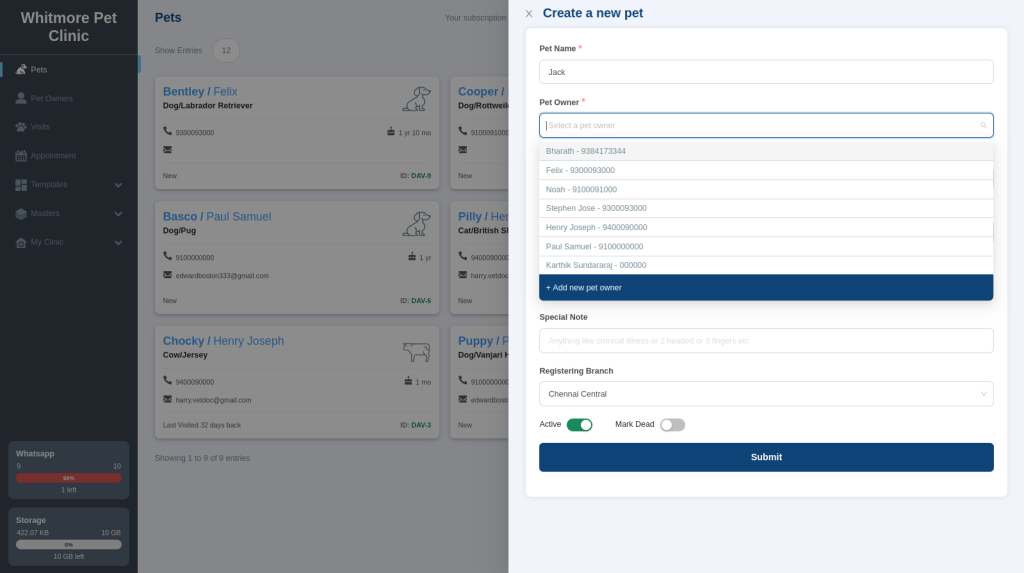
- In Pet Name, enter the pet's name.
-
In Pet Owner, choose the owner from the list. If the owner is new, select Add a New Pet Owner.
-
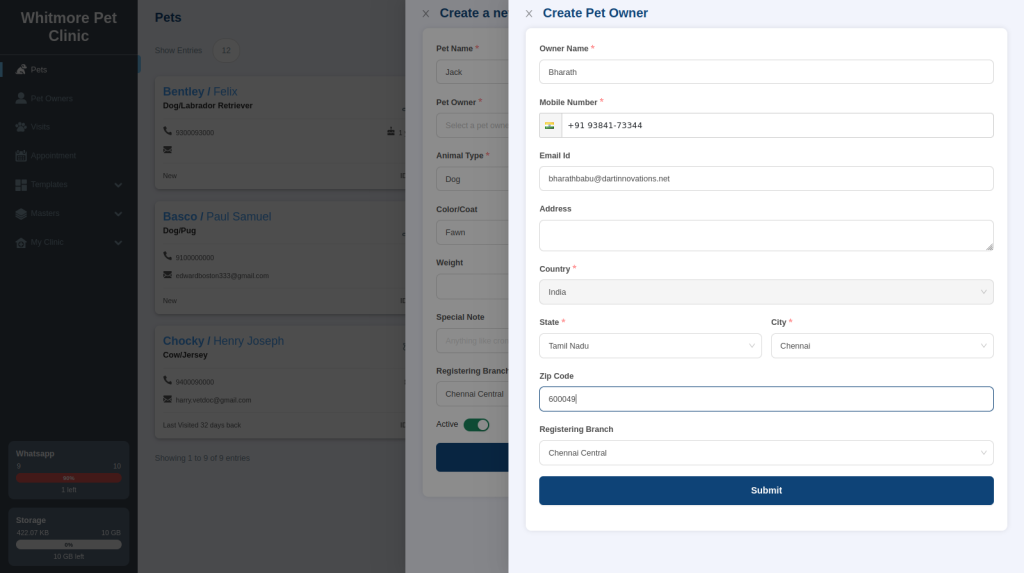
If you are adding a new owner, enter the owner's name, mobile number, email address, address and registering branch, then select Submit. The owner is linked to the pet.
-
Choose the Animal Type, Breed and Color/Coat. These start with the defaults set for your clinic, so change them if they do not match the pet.
- Enter the Date of Birth.
- Enter the Weight and Height, and choose the Registering Branch.
- Add a Special Note about the animal if needed.
-
Leave Active turned on and select Submit.
Tip
Enter the owner's mobile number and email address. VetNvet uses them to send visit and follow-up details by WhatsApp and email.
Send the welcome message#
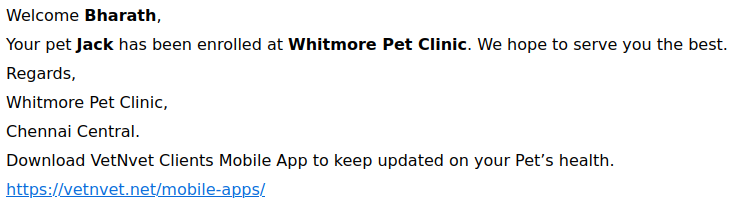
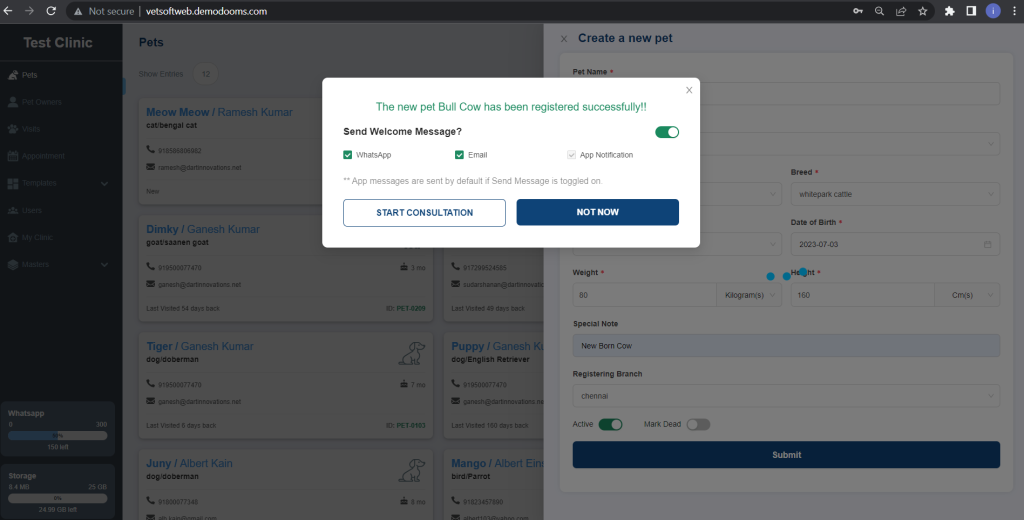
After you submit, a message confirms that the pet was created. It also offers to send the owner a welcome message.
- Send Welcome Message is on by default. Choose WhatsApp, Email or both.
- If you turn on Send Welcome Message but clear both WhatsApp and Email, the owner gets an in-app message only.
- If you turn off Send Welcome Message, the owner gets no message.
Next, start a consultation straight away or select Not now to do it later. See Start a consultation.
This is the welcome message the owner receives by email and WhatsApp: