
Clinic and branches
Update your clinic details, add and edit branches, and set default selections and the Pet ID prefix.
Use My Clinic to keep your clinic details up to date and manage your branches. Do this first: VetNvet uses these details on letter pads, messages and new pet records.
Watch the video: Getting started with VetNvet in 5 minutes
Open the clinic dashboard#
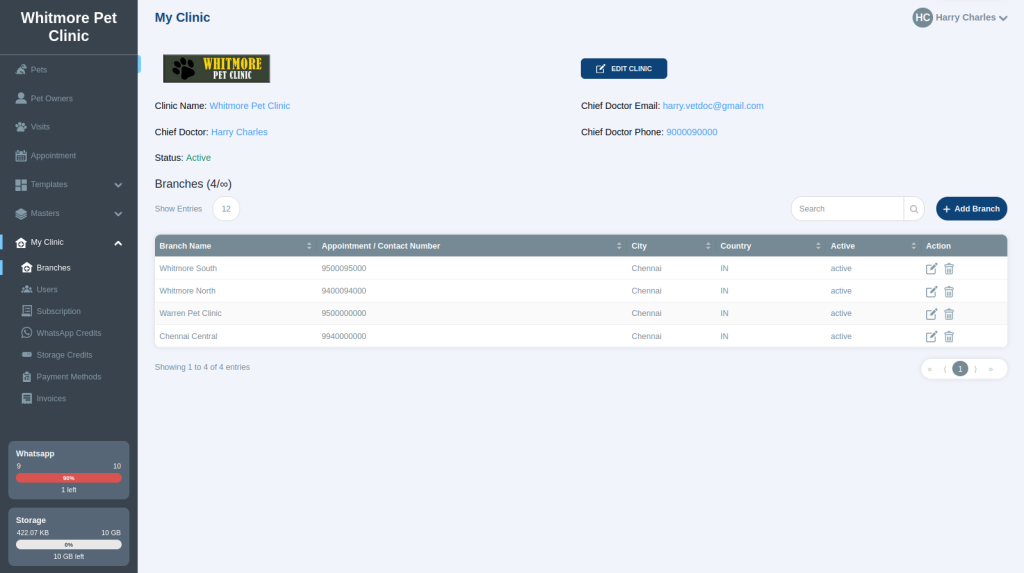
Select My Clinic in the left menu. The clinic dashboard shows your clinic details and a list of your branches.
Edit your clinic details#
- On the clinic dashboard, select Edit Clinic.
- Update the business (clinic or hospital) name, the owner or chief doctor, and the Pet ID preference.
- Save your changes.
Add or edit a branch#
All your branches appear in the list on the clinic dashboard.
- To add a branch, select Add Branch.
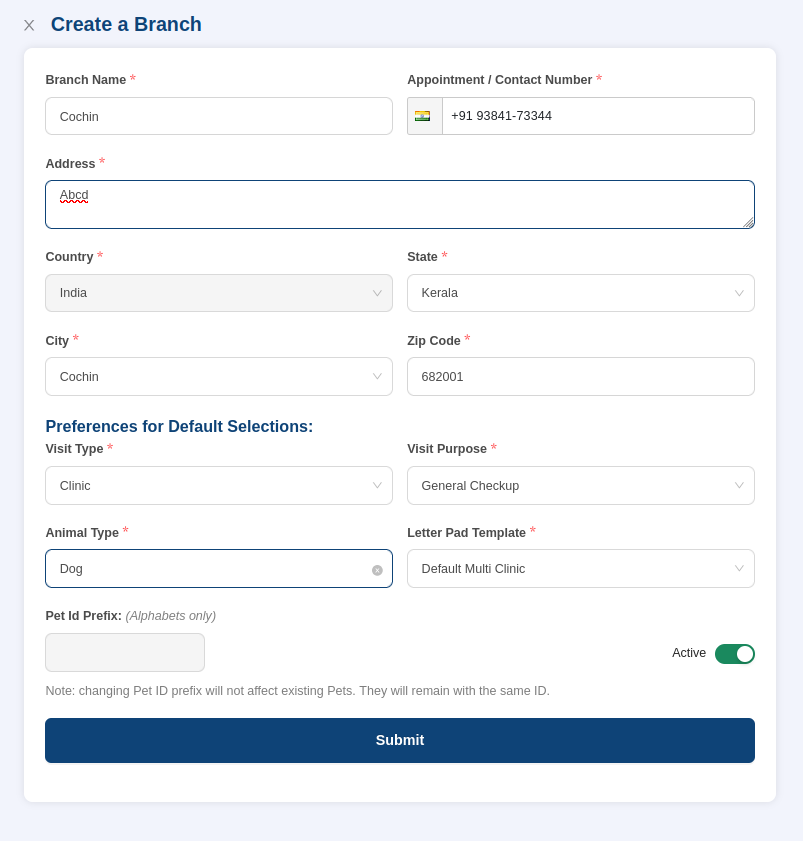
- To change a branch, select the edit icon next to it in the list. The branch details screen opens.
Note
The number of branches you can add depends on your subscription. To add more, upgrade your plan.
Set default selections#
Default selections make consultations faster. For example, if most of your patients are dogs, set Dog as the default animal type. When you create a new visit, the animal is already set to dog.
You can also set a default breed and a default colour.
Set the Pet ID prefix#
VetNvet gives every pet a unique Pet ID. You can set a prefix of any 3 characters, either for the whole clinic or for each branch.
For example, if Branch 1 uses BR1 and Branch 2 uses BR2, the Pet IDs look like this:
| Branch | Pet IDs |
|---|---|
| Branch 1 | BR1-1, BR1-2 ... BR1-2002 |
| Branch 2 | BR2-1, BR2-2 ... BR2-30004 |
You choose whether to use one prefix for the clinic or one per branch. Most clinics use one prefix for the whole clinic because it makes records easier to track.