
Manage appointments
View, create, edit, reschedule and complete appointments, and send appointment messages to pet owners.
The Appointment page shows all your appointments. You can create appointments, change them, mark them as completed and start consultations from here.
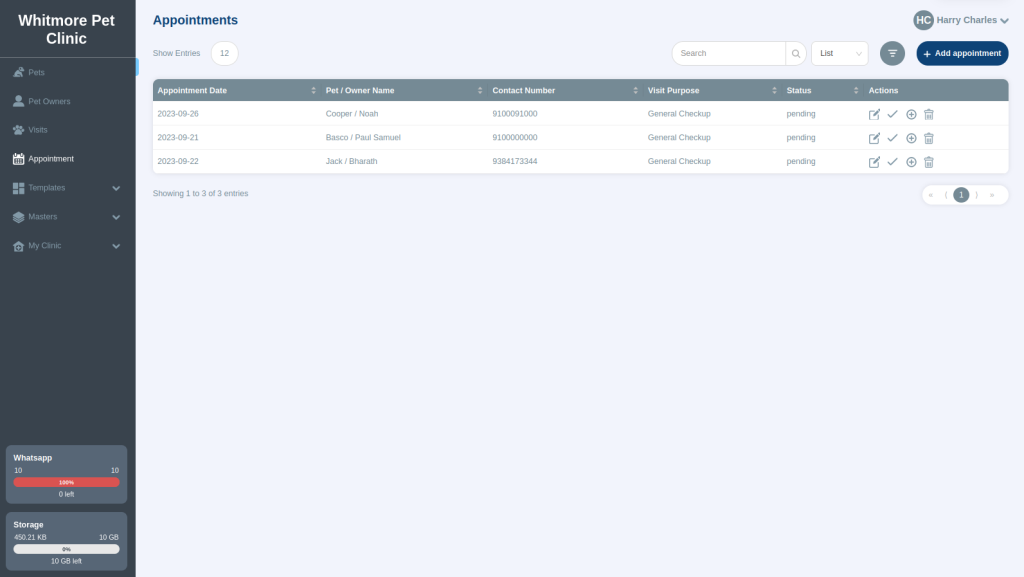
View appointments#
You can filter appointments by date, pet or pet owner, visit purpose and status (Pending or Completed).
Show them as a list, or by day, week or month.
Create an appointment#
Use an appointment for any reason, such as a vaccination or an illness.
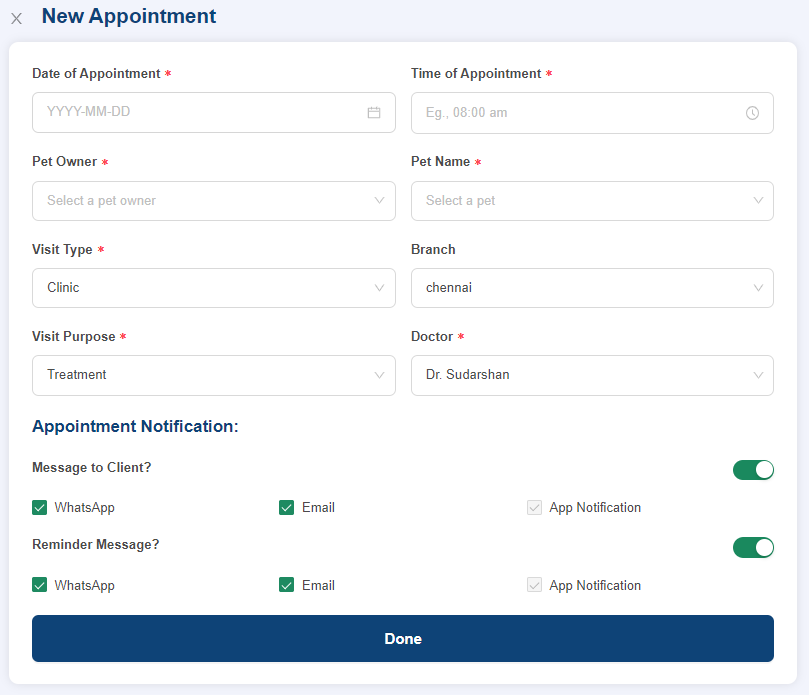
- Select Create new appointment.
- Enter the date, time and visit type.
- Choose how to tell the owner:
- Turn the appointment message and reminder on or off.
- Choose WhatsApp, Email or both.
- To send no messages or reminders, turn messaging off.
- Select Done. The owner receives the messages you chose.
Manage a pending appointment#
For an appointment with the status Pending, the Actions column lets you:
-
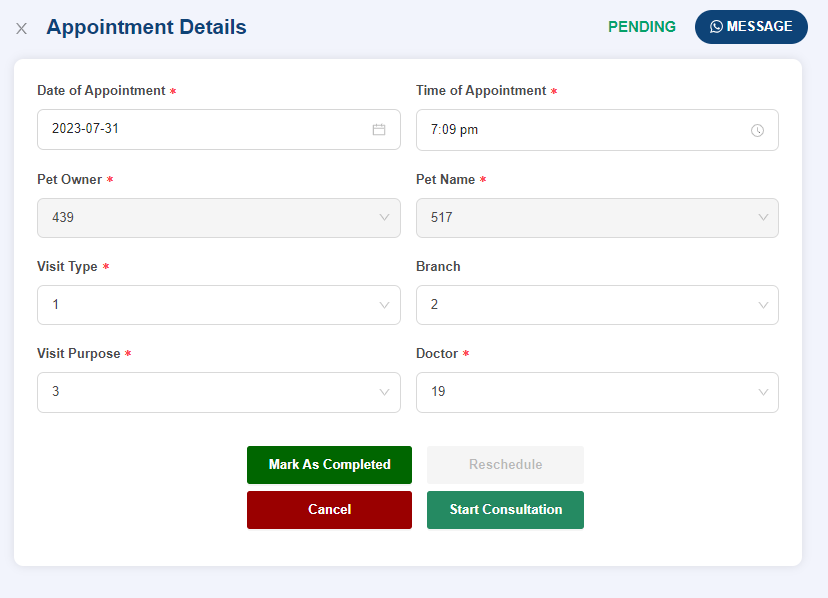
Edit: Change the date and time to reschedule it. You can also start the consultation or mark it as completed from here.
-
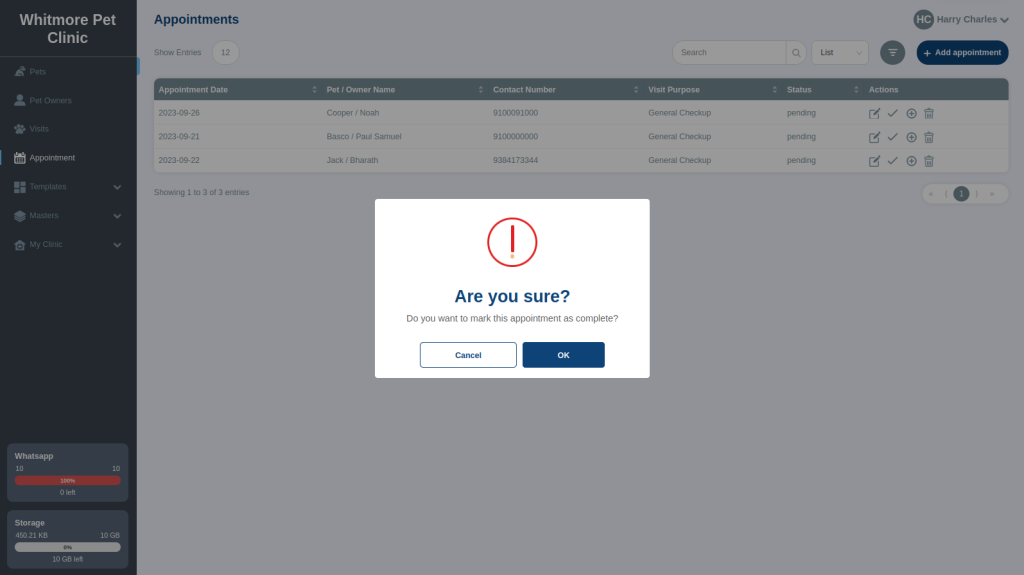
Mark as completed: Select the tick icon, then confirm.
-
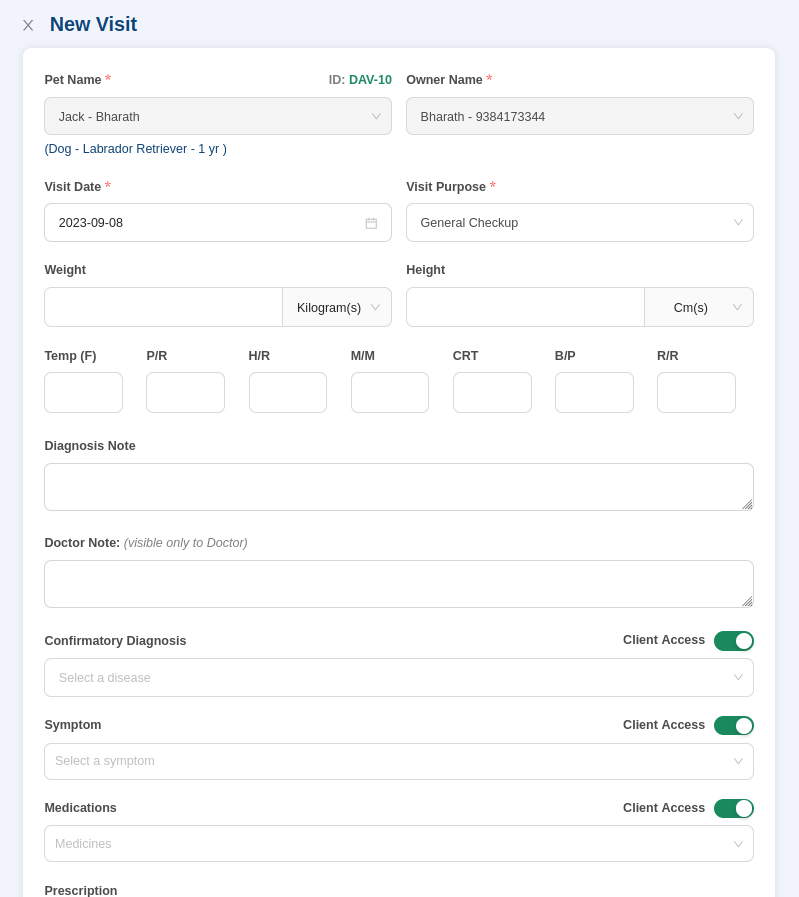
Start consultation: Open a new visit for the pet. The doctor records the diagnosis and submits the visit. See Start a consultation.
-
Delete: Remove the appointment.
Book again from a completed appointment#
For an appointment with the status Completed, you can schedule a new appointment:
- Change the date and time.
- Schedule the new appointment. The messaging options open.
- Select Submit. The owner receives the appointment notification.